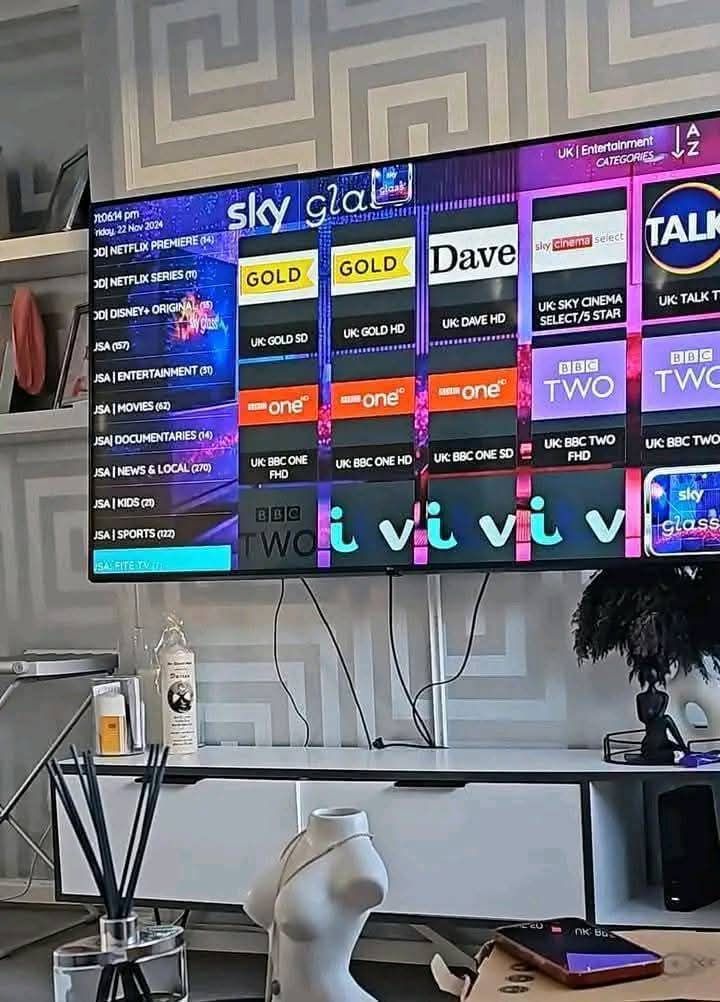
How to Set Up IPTV on Android TV in 2026
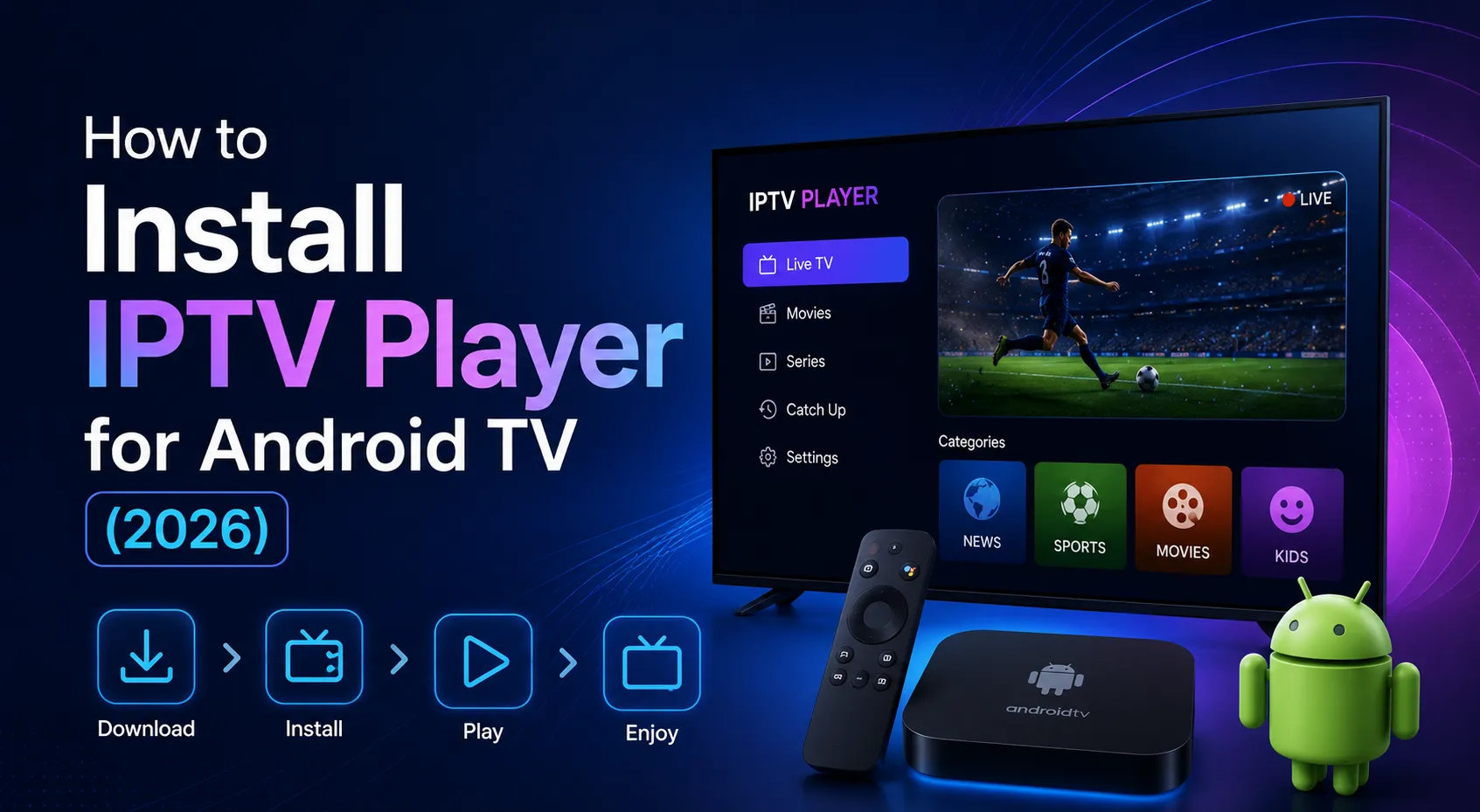
How to Set Up IPTV on Android TV in 2026
How to set up IPTV on Android TV in 2026
Android TV provides a convenient way to watch authorized streaming content on a television using compatible applications. Whether you use the OmniPtv service or are still searching for the best IPTV USA provider, this guide helps. If you use a different television brand, see our general guide on how to set up IPTV on Smart TV.
If you want to use IPTV on Android TV, the basic process is straightforward: connect your device to the internet, install a compatible IPTV player, add your authorized M3U playlist or account details, and configure the electronic program guide if one is available.
Depending on the service you use, you may receive an M3U playlist URL or Xtream Codes-style login information.
In this guide, we explain how to set up IPTV on Android TV in 2026, how to add your playlist, configure EPG information, organize channels, improve playback, and troubleshoot common problems.
Only use IPTV content, playlists, and account credentials that you are authorized to access.
What You Need Before Setting Up IPTV
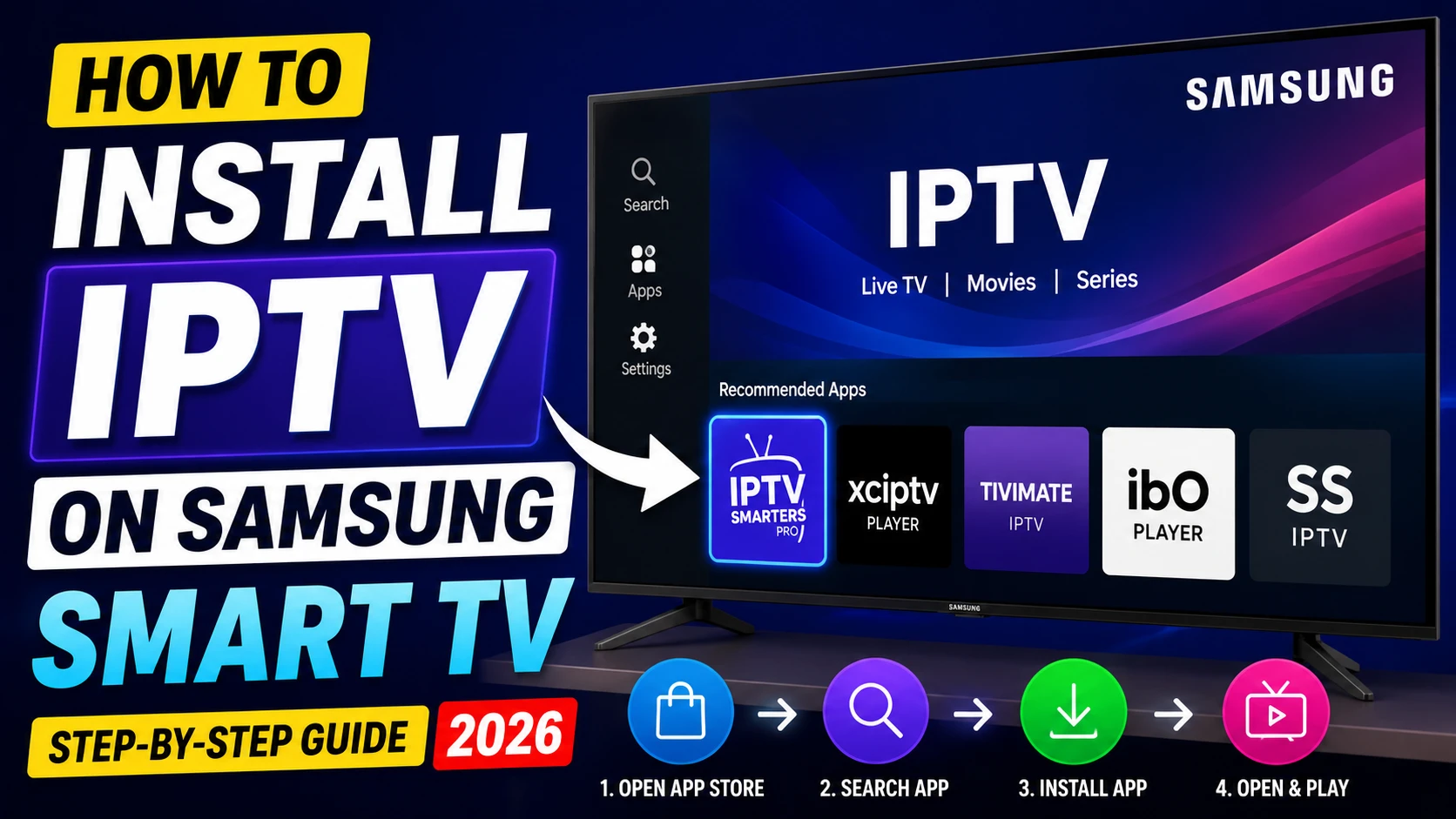 Android TV device ready for IPTV setup
Before starting, make sure you have:
- An Android TV television or compatible Android TV device
- A stable internet connection
- Access to Google Play Store
- A compatible IPTV player
- An authorized IPTV playlist or account
- An IPTV M3U URL or Xtream Codes credentials
- EPG information if supplied by your service
Google's Android TV documentation confirms that compatible apps can be searched for and installed through the Play Store.
If you are using a Google TV-powered device, apps can similarly be searched for from the Apps section and installed directly when available.
Step 1: Connect Your Android TV to the Internet
Start by connecting your Android TV television or device to the internet.
You can normally use:
- Wi-Fi
- Ethernet
For high-quality streaming, a stable connection is more important than simply having a high advertised download speed.
If your device supports Ethernet and is close enough to your router, a wired connection can provide a consistent connection.
If you use Wi-Fi, make sure the signal is strong and the router is not too far from the TV.
After connecting, open another application to confirm that the internet connection is working.
Step 2: Install an IPTV Player
 Installing an IPTV player on Android TV
Open the Google Play Store on your Android TV.
Search for a compatible IPTV player and install it from its official listing.
The exact applications available can vary depending on the device, region, and current Play Store availability.
When selecting a player, check that it supports the playlist or login method supplied by your authorized IPTV service.
For example, you may need support for:
- M3U playlists
- Xtream Codes-style login
- EPG
- Favorites
- Channel groups
- Multiple video decoders
Do not install unknown or modified applications simply because they promise additional channels or unauthorized content.
Step 3: Open the IPTV Player
After installation, launch the IPTV player.
The first screen may ask you to add a playlist, account, or source.
Common options include:
- Add playlist
- M3U playlist
- M3U URL
- Xtream Codes
- Add user
- Login
The exact terminology depends on the application.
Choose the option that corresponds to the information supplied by your authorized IPTV service.
Step 4: Add an M3U Playlist
Adding an M3U IPTV playlist on Android TV
If you received an M3U URL, select the M3U playlist or playlist URL option.
You will commonly need to enter:
- Playlist name
- M3U URL
Give the playlist a recognizable name.
Then paste the complete M3U URL exactly as provided.
Be careful when entering the URL.
A single missing character, space, or incorrect parameter can prevent the playlist from loading.
After entering the information, select the equivalent of:
- Add
- Save
- Next
- Load playlist
The exact button depends on the IPTV player.
Wait for the application to process the playlist.
Large playlists may take longer to load.
Step 5: Set Up IPTV Using Xtream Codes
Some authorized IPTV services provide Xtream Codes-style credentials rather than a direct M3U URL.
If your IPTV player supports this option, select Xtream Codes or the equivalent login method.
You will generally enter:
- Server URL
- Username
- Password
Enter each field exactly as supplied.
Do not add extra spaces or change the server address.
After submitting the information, the application may retrieve:
- Live TV channels
- Channels
- Movies
- Series
- EPG information
The available content depends on your authorized service. Before importing an IPTV playlist, check our guide to IPTV M3U URLs for common formatting and setup issues.
Step 6: Configure the EPG
EPG means Electronic Program Guide.
It provides information about current and upcoming programs.
Some IPTV services include EPG information automatically.
Others may provide a separate EPG URL.
If an EPG URL is supplied, open the EPG settings in your IPTV player.
Look for options such as:
- EPG
- EPG Source
- Add EPG
- Update EPG
- Refresh EPG
Enter the EPG source exactly as provided.
Then refresh the guide.
If the EPG does not appear, check:
- EPG URL
- Playlist mapping
- Channel identifiers
- Device date and time
- Time zone
- EPG refresh settings
Step 7: Wait for the Playlist to Finish Loading
After adding the playlist or account, give the application enough time to process the information.
The loading time can depend on:
- Playlist size
- Internet speed
- Server response
- Device performance
- IPTV player
Once the process finishes, open the Live TV or Channels section.
Test several channels instead of only one.
This helps determine whether the issue affects the entire playlist or an individual stream.
Step 8: Organize Your IPTV Channels
Large playlists can contain hundreds or thousands of channels.
A good IPTV player may provide features such as:
- Favorites
- Groups
- Categories
- Search
- Recently watched
- Hidden channels
Add your most frequently watched channels to Favorites.
You can also use channel categories to make navigation easier.
Avoid hiding or deleting channels until you are sure you no longer need them.
Step 9: Configure Playback Settings
Depending on your IPTV player, you may find settings for:
- Hardware decoding
- Software decoding
- Hardware acceleration
- Buffer size
- Aspect ratio
- Audio tracks
- Subtitles
- External players
If playback has problems, change one setting at a time.
For example, if audio works but the video is black, the decoder or codec compatibility may need to be investigated.
Do not change several settings simultaneously because it becomes difficult to identify the cause.
Step 10: Test Different Channels and Qualities
After completing the setup, test several types of content.
For example:
- News
- Entertainment
- Sports
- HD
- Full HD
- 4K
If one channel fails while others work, the problem may be specific to that stream.
If all channels fail, investigate:
- Internet connection
- Playlist URL
- Account credentials
- Server availability
- IPTV player
- Device settings
If you face problems, check our IPTV M3U Playlist Not Working Troubleshooting Guide. If you need help with OmniPtv plans, contact us.
How to Improve IPTV Performance on Android TV
A correct setup is only part of the experience.
Your network, device, and IPTV player can all affect playback.
Use a Stable Internet Connection
A stable connection is important for continuous streaming.
High-quality streams can require more bandwidth, so avoid saturating your connection with unnecessary downloads.
Use Ethernet When Practical
If your Android TV device supports Ethernet, a wired connection can help reduce problems caused by wireless interference.
This can be particularly useful for high-bitrate HD and 4K streams.
Reduce Background Network Usage
Temporarily stop:
- Large downloads
- Cloud backups
- Game updates
- Other video streams
Then test IPTV again.
Keep Your Apps Updated
Android TV allows users to update installed apps through Google Play. Google also provides an auto-update option for apps.
Keeping the IPTV player updated can help maintain compatibility with newer versions of Android TV.
If a problem begins immediately after an update, check the application's settings and look for another official update.
Keep Android TV Updated
System updates can contain bug fixes, compatibility improvements, and other changes.
On compatible devices, check the system update section in the device settings.
Google's troubleshooting guidance also recommends checking the device's system software when dealing with playback problems.
Common IPTV Problems on Android TV
IPTV Channels Are Not Loading
Check:
- Internet connection
- M3U URL
- Username
- Password
- Server URL
- Account status
If possible, test another authorized playlist or another compatible player to determine where the problem occurs.
IPTV Is Buffering
Possible causes include:
- Weak Wi-Fi
- Network congestion
- High stream bitrate
- Device limitations
- Server-side issues
Try Ethernet if available and test another channel.
IPTV Shows a Black Screen
Check:
- Video decoder
- Player settings
- Device compatibility
- Individual stream
If audio works but video does not, test the available hardware and software decoder options.
IPTV EPG Is Not Loading
Check:
- EPG URL
- EPG source
- Playlist mapping
- Device time zone
- EPG refresh
IPTV Login Failed
Recheck:
- Username
- Password
- Server URL
- Login method
Enter the credentials exactly as provided.
Android TV IPTV Troubleshooting Table
| Problem | Possible Cause | First Thing to Check |
|---|---|---|
| IPTV player will not open | App problem | Restart/update app |
| Playlist will not load | URL or network | Check M3U URL |
| Login failed | Incorrect credentials | Username/password/server |
| Channels are missing | Filters or playlist changes | Groups and favorites |
| IPTV buffers | Network or stream bitrate | Connection |
| Black screen | Decoder issue | Playback settings |
| Audio but no video | Codec/decoder issue | Hardware/software decoder |
| EPG not loading | EPG configuration | EPG source |
| EPG time is wrong | Time-zone issue | Device date/time |
| One channel fails | Individual stream | Test another channel |
Can You Use IPTV on Google TV?
Google TV-powered devices support compatible applications that can be installed through the device's Apps interface when those applications are available.
The basic process is similar:
- Connect the Google TV device to the internet.
- Open the Apps section.
- Search for a compatible IPTV player.
- Install the application.
- Add your authorized IPTV playlist or account.
- Configure EPG if available.
- Test playback.
The exact menus can vary between manufacturers and device versions.
Can You Use IPTV on an Android TV Box?
Compatible Android TV boxes can run IPTV applications, but the experience depends on the device.
Before choosing an Android TV device, consider:
- Processor
- RAM
- Supported codecs
- 4K support
- Ethernet
- Wi-Fi capabilities
- Operating system
- Google Play Store availability
Not every inexpensive device marketed as an Android box provides the same experience as a certified Android TV or Google TV device.
Do You Need a VPN for IPTV on Android TV?
A VPN is not automatically required to use an IPTV player.
Whether you choose to use one depends on your privacy preferences, network configuration, local laws, and the terms of the services you use.
A VPN also does not automatically solve IPTV problems.
If the issue is an incorrect M3U URL, expired authorization, broken EPG, incompatible player, or device limitation, changing the network route may not fix it.
Frequently Asked Questions
Can I install an IPTV player directly on Android TV?
Yes. Compatible applications can be installed through Google Play Store when they are available for the device.
What do I need to set up IPTV on Android TV?
You generally need an Android TV or compatible Google TV device, internet access, a compatible IPTV player, and an authorized IPTV playlist or account.
Is M3U better than Xtream Codes?
Neither is universally better. M3U uses a playlist, while Xtream Codes-style login generally uses a server URL, username, and password. Use whichever format is supported by your authorized service and preferred player.
Why is my IPTV playlist not loading?
Check the M3U URL, account credentials, internet connection, server availability, and IPTV player compatibility. See our full IPTV M3U Playlist Not Working Troubleshooting Guide.
Why is IPTV buffering on Android TV?
Buffering can be caused by Wi-Fi interference, network congestion, high stream bitrate, device limitations, player settings, or server-side problems.
Why is my IPTV EPG empty?
The EPG source may be unavailable, incorrectly configured, or not properly mapped to the playlist. Check the EPG URL and refresh the guide.
Can Android TV play 4K IPTV?
Compatible devices can play 4K streams, but actual performance depends on the device hardware, codec support, network stability, and stream bitrate.
Can I use the same IPTV account on multiple devices?
That depends on the authorization and usage conditions of your IPTV service. Check its terms before using the same credentials on multiple devices.
Is an IPTV player the same as an IPTV provider?
No. An IPTV player is software used to organize and play content. A provider or authorized content source supplies the playlist or content.
Conclusion
Setting up IPTV on Android TV in 2026 is straightforward when you have a compatible device, IPTV player, stable internet connection, and authorized IPTV credentials.
Start by connecting your Android TV to the internet and installing a compatible player through the available official app store.
Then add your M3U playlist or Xtream Codes credentials, configure EPG if available, organize your channels, and test several streams.
If something does not work, troubleshoot one component at a time.
Check the playlist, credentials, network, EPG, application settings, device compatibility, and individual streams before assuming that the entire service is unavailable.
With the right setup and a stable connection, Android TV can provide a convenient large-screen environment for accessing authorized IPTV content with Omni IPTV service. If you need to add an IPTV playlist, our M3U playlist setup guide explains the process step by step, and you can review our FAQ for more details.