IPTV M3U Playlist Not Working: Complete Troubleshooting Guide
IPTV M3U Playlist Not Working: Complete Troubleshooting Guide
IPTV M3U playlist troubleshooting guide
An M3U playlist is one of the common ways IPTV users organize and access authorized streaming content through a compatible IPTV player.
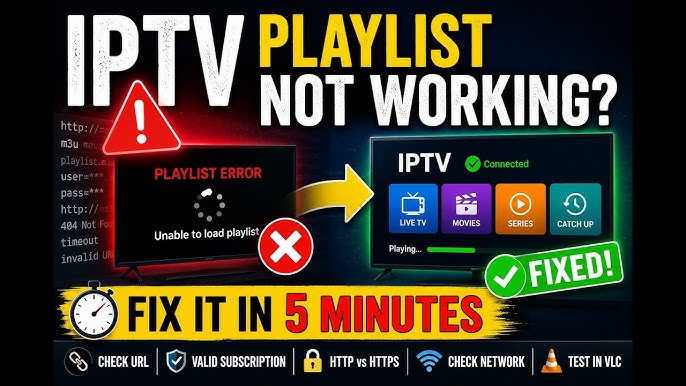
However, an M3U playlist can sometimes stop loading, show missing channels, display an error, or open successfully while individual streams fail to play.
The problem does not always mean that the IPTV player itself is broken.
Issues can come from an incorrect IPTV M3U URL, an expired or unavailable playlist, network problems, player compatibility, incorrect credentials, EPG configuration, supported devices, or problems affecting individual streams.
In this guide, we will explain the most common reasons an IPTV M3U playlist may not work and provide a systematic way to troubleshoot the problem. Viewers looking for a flexible IPTV experience can learn about finding the best IPTV USA or explore OmniPtv and review the available options for their preferred devices.
What Is an M3U Playlist?
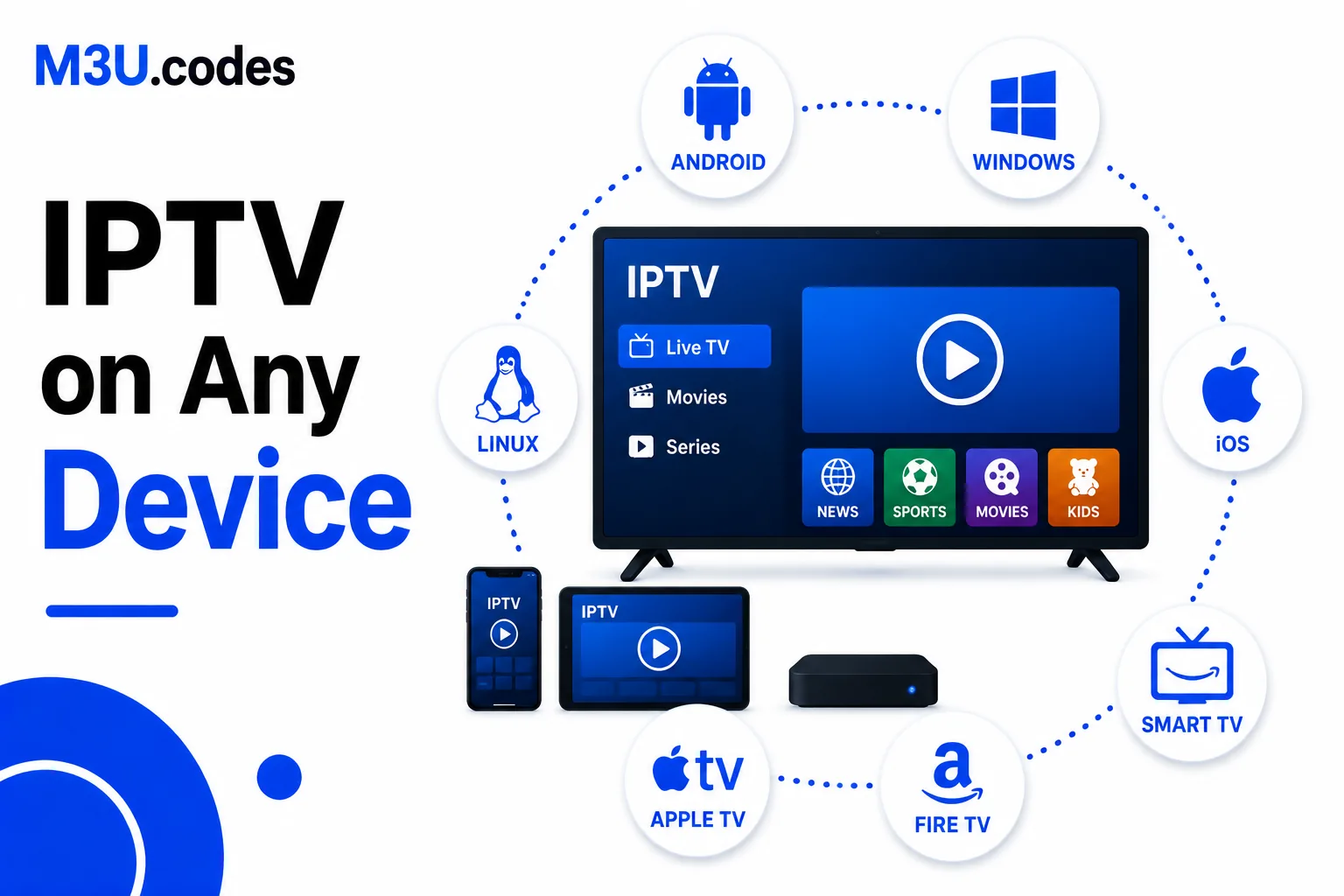 How an M3U IPTV playlist works
M3U is a playlist format that can contain references to media streams.
In IPTV applications, an IPTV playlist can contain information such as:
- Channel names
- Stream URLs
- Channel groups
- Logos
- Electronic Program Guide identifiers
- Other playlist metadata
An IPTV player reads this information and organizes it into a channel interface.
The M3U playlist itself is generally not the video player. The IPTV application is responsible for interpreting the playlist and attempting to play the referenced streams.
This distinction is important when troubleshooting.
Why Is My IPTV M3U Playlist Not Working?
There are several possible causes.
Common problems include:
- Incorrect M3U URL
- Expired playlist or account
- Incorrect username or password
- Server availability problems
- Internet connection problems
- IPTV player compatibility issues
- Invalid or corrupted M3U file
- EPG configuration problems
- Missing or incorrectly mapped channels
- Device or decoder limitations
The best approach is to test each part separately instead of immediately replacing everything.
1. Check the M3U Playlist URL
Checking an M3U playlist URL for IPTV
The first thing to verify is the playlist URL.
A single missing character can make a URL fail.
Check for:
- Missing characters
- Extra spaces
- Incorrect protocol
- Incorrect server address
- Incorrect port
- Broken URL parameters
- Typographical errors
If the playlist was copied from another location, copy it again from the original authorized source like Omni IPTV.
Avoid manually retyping long URLs whenever possible.
Test the URL Again
Remove the existing playlist from the IPTV player and add it again using the exact information provided by your authorized service.
If the application supports a URL-based playlist, make sure you select the correct playlist type.
2. Check Whether the Playlist or Account Has Expired
An IPTV playlist may stop working if the associated account or authorization has expired.
Depending on the service, you may see:
- Login errors
- Empty playlists
- Missing channels
- Server connection errors
- Playlist loading failures
If the playlist previously worked and suddenly stopped, check the status of your authorized account, or check IPTV pricing if you need a new sub or contact the provider's official support. You can review our Pricing plans if you need a new subscription.
Do not assume that the IPTV player is broken simply because an existing playlist stopped working.
3. Check Username and Password
Some M3U URLs include account information directly in the URL.
Other IPTV services use a separate login system.
If your service provided:
- Username
- Password
- Server URL
make sure all three values are entered correctly.
Pay attention to:
- Uppercase letters
- Lowercase letters
- Numbers
- Special characters
- Extra spaces
A single incorrect character can prevent authentication.
4. Check Your Internet Connection
Your IPTV player needs a working internet connection to retrieve the playlist and stream content.
Test another online application on the same device.
If other applications also have problems, the issue may be related to your network.
Try:
- Restarting the router.
- Restarting the streaming device.
- Testing another network.
- Checking Wi-Fi signal strength.
- Trying Ethernet if available.
If the internet connection is unstable, an M3U playlist may fail to load or streams may repeatedly disconnect.
5. Check Whether the IPTV Server Is Available
Sometimes the playlist and device are working correctly while the streaming server is temporarily unavailable.
Possible causes include:
- Maintenance
- Temporary outage
- High demand
- Server overload
- Network problems
- Stream-specific issues
Test several channels.
If every channel fails, the problem may be related to the server, playlist, account, or network.
If only one or two channels fail, the problem may be limited to those streams.
6. Check Your IPTV Player
Troubleshooting an IPTV player with an M3U playlist
Not every IPTV player handles every playlist in exactly the same way.
If the M3U playlist fails in one application, testing it in another compatible IPTV player can help identify whether the issue is application-specific.
Before switching applications, also check:
- Application version
- Playlist format support
- M3U URL support
- Network permissions
- Player settings
Use official versions of applications whenever possible. Check out our Setup Guide for recommended apps on different devices.
7. Refresh or Re-Add the Playlist
Sometimes an IPTV player may have outdated playlist data.
If the application provides a refresh option, use it.
You may see options such as:
- Refresh playlist
- Update playlist
- Reload playlist
- Sync playlist
If refreshing does not work, remove the playlist and add it again.
This can help when the application has cached outdated information.
8. Check for Missing Channels
Sometimes the M3U playlist loads successfully but some channels are missing.
Possible causes include:
- Channel groups being filtered
- Hidden channels
- Playlist updates
- Stream changes
- Incorrect playlist data
- Service-side changes
Check the IPTV player's:
- Channel groups
- Favorites
- Hidden channels
- Search
- Playlist filters
Make sure you are viewing the full playlist rather than a restricted favorites or category list.
9. Fix IPTV EPG Problems
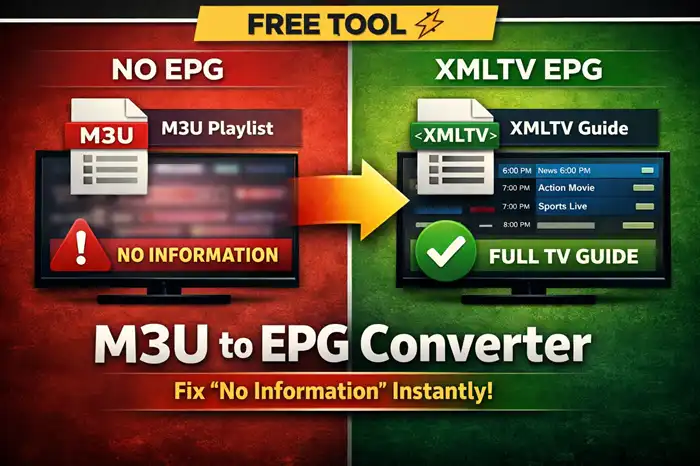 Troubleshooting IPTV EPG and missing channels
An M3U playlist can work correctly while the EPG does not.
EPG stands for Electronic Program Guide.
It provides information about current and upcoming programs.
If channels work but program information is missing or incorrect, check:
- EPG URL
- EPG source
- Playlist mapping
- Channel identifiers
- Device time zone
- EPG refresh settings
If your service provides a separate EPG URL, enter it exactly as supplied.
Then refresh the EPG.
Why Does EPG Show the Wrong Time?
Incorrect time information can be caused by:
- Incorrect device time zone
- Incorrect EPG source
- Incorrect channel mapping
- Time-zone differences
- Incorrect program data
Check the Android TV, Google TV, Fire TV, or other streaming device's date and time settings.
10. Check Whether the M3U File Is Valid
If you received an actual M3U file instead of a URL, the file itself may have a problem.
Possible causes include:
- Corrupted file
- Incomplete download
- Incorrect formatting
- Missing stream entries
- Invalid URLs inside the playlist
If the file was downloaded, obtain a fresh copy from the authorized source and test it again.
Do not modify the file unless you understand its format and have permission to do so.
11. IPTV Playlist Loads but Channels Do Not Play
This is an important distinction.
If the playlist loads correctly but channels fail during playback, the M3U file itself may not be the main problem.
Possible causes include:
- Stream URL problems
- Server-side issues
- Unsupported codec
- Player decoder problems
- Device limitations
- Network instability
Try several channels.
If all channels fail, investigate the player, network, and service.
If only one channel fails, the individual stream may be the problem.
12. Fix IPTV Buffering After the Playlist Loads
Troubleshooting IPTV M3U buffering problems
If channels load but constantly buffer, check the network and playback environment.
Try:
- Restarting the router
- Using Ethernet
- Improving Wi-Fi signal
- Stopping background downloads
- Testing another channel
- Testing another device
- Checking stream quality
- Updating the IPTV player
High-bitrate HD and 4K streams can require more bandwidth than lower-quality streams.
13. Try Another Compatible Device
Testing the same authorized playlist on another compatible device can be extremely useful.
For example, compare:
- Android TV
- Google TV
- Fire TV
- Compatible smartphone
- Compatible computer
If the playlist works normally on another device, the original device or application may be responsible.
If it fails everywhere, investigate the playlist, account, network, or streaming source.
14. Check Your Device's Date and Time
Incorrect system time can sometimes interfere with authentication, certificates, EPG information, or other network functions.
Make sure your device has:
- Correct date
- Correct time
- Correct time zone
- Automatic time synchronization where available
Restart the IPTV player after correcting the settings.
15. Update the IPTV Application
An outdated IPTV player can sometimes have compatibility problems.
Check for updates through the official application store or official source.
After updating:
- Restart the application.
- Refresh the playlist.
- Test several channels.
If the problem started immediately after an update, review the application's settings and check whether a newer official update is available.
M3U Playlist Troubleshooting Checklist
| Problem | Possible Cause | What to Check |
|---|---|---|
| Playlist will not load | Incorrect URL | Recheck M3U URL |
| Login failed | Incorrect credentials | Username/password |
| Playlist suddenly stopped | Account or server issue | Account status |
| Channels are missing | Filters or playlist changes | Groups and favorites |
| EPG is empty | EPG configuration | EPG URL and mapping |
| EPG time is wrong | Time-zone issue | Device date/time |
| Channels buffer | Network or stream bitrate | Connection |
| Audio but no video | Decoder issue | Player settings |
| One channel fails | Individual stream | Test other channels |
| All channels fail | Network/server/player | Test systematically |
| Playlist works on another device | Device-specific problem | Original device |
| File will not load | Corrupted M3U | Obtain a fresh file |
How to Troubleshoot an M3U Playlist Step by Step
If you want the fastest systematic approach, follow these steps in order:
Step 1
Check your internet connection.
Step 2
Verify the M3U URL or file.
Step 3
Check account credentials and authorization.
Step 4
Refresh the playlist.
Step 5
Test several channels.
Step 6
Check EPG separately from channel playback.
Step 7
Update the IPTV player.
Step 8
Test another compatible player.
Step 9
Test another device.
Step 10
Contact the authorized service's support if the problem persists. If you are an OmniPtv customer, you can Contact Support.
This process helps isolate the source of the problem instead of changing several variables at once.
Frequently Asked Questions
Why is my M3U playlist not loading?
The most common causes include an incorrect URL, expired authorization, server problems, network issues, or an IPTV player that does not properly support the playlist. Read our full FAQ for more common questions.
Why does my M3U playlist work on one device but not another?
The problem may be related to the IPTV player, device hardware, decoder, network connection, or application settings.
Why are some channels missing from my M3U playlist?
Check channel groups, filters, favorites, hidden channels, and whether the playlist has recently changed.
Why does my M3U playlist load but channels do not play?
The playlist may be valid while individual stream URLs, server availability, codecs, or playback settings cause problems.
Why is my IPTV EPG not working?
Check the EPG source, URL, channel mapping, device time zone, and EPG refresh settings.
Can I use the same M3U playlist on another device?
That depends on the authorization and usage conditions associated with the playlist or service.
Why does IPTV buffer even though the M3U playlist loads?
Playlist loading and video streaming are separate processes. Buffering can be caused by network instability, stream bitrate, device performance, player settings, or server-side problems.
Should I delete and reinstall my IPTV player?
Not immediately. First verify the playlist, network, account, and player settings. Reinstalling the application can be useful if the application itself appears corrupted, but it should not be the first troubleshooting step.
Why does my IPTV work sometimes and stop working later?
Possible causes include temporary server problems, network congestion, expired authorization, playlist changes, or unstable internet.
Conclusion
When an IPTV M3U playlist is not working, the problem can come from several different places.
Start by checking the M3U URL or file, account authorization, internet connection, and server availability.
Then investigate the IPTV player, EPG configuration, device settings, and individual streams.
One of the most useful troubleshooting techniques is to test multiple channels and, when possible, another compatible device or player.
This helps determine whether the problem is with the playlist itself or with the network, application, device, or streaming source.
By troubleshooting each component systematically, you can usually identify the cause of an M3U playlist problem without unnecessarily changing your entire setup.