IPTV Login Failed: Username, Password and Server URL Fixes
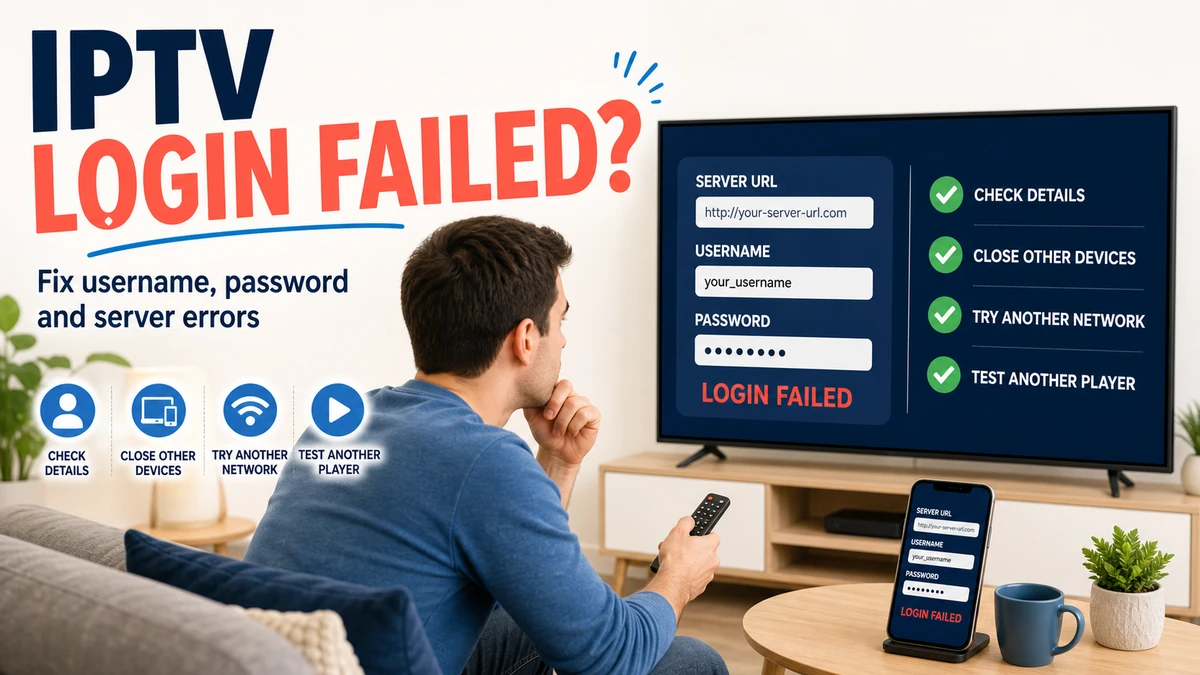
IPTV Login Failed: Username, Password and Server URL Fixes
IPTV login failed troubleshooting guide
An IPTV login error can be frustrating, especially when the same account previously worked without any problems.
A message such as "Login Failed," "Invalid Credentials," "Authentication Failed," or "Server Error" does not necessarily mean that the IPTV application is broken.
The problem can come from an incorrect username, password, server URL, expired account, network connection, application settings, or a temporary problem with the authorized service.
In this guide, we explain the most common causes of IPTV login failures and the steps you can take to identify and fix them. Users looking for a stable service can choose OmniPtv.
Only use IPTV accounts, credentials, playlists, and services that you are authorized to access. We recommend reviewing OmniPtv plans for an authorized setup.
What Does "IPTV Login Failed" Mean?
An IPTV login failure generally means that the IPTV application could not successfully authenticate your account or connect to the server using the information provided.
Depending on the IPTV player, you may see messages such as:
- Login failed
- Invalid username or password
- Authentication failed
- Server connection failed
- Invalid server URL
- Connection timeout
- User not found
- Account expired
The exact message can help identify the problem.
For example, an invalid username or password usually points toward an authentication issue, while a connection timeout may indicate a network or server problem.
1. Check Your IPTV Username
Checking IPTV username and password credentials
The first thing to verify is your username.
If your IPTV service provided a username, enter it exactly as supplied.
Check for:
- Missing characters
- Extra spaces
- Incorrect capitalization
- Numbers entered incorrectly
- Similar-looking characters
Avoid manually typing long credentials when possible. Copy and paste them directly from the original authorized source like Omni IPTV.
Be careful when copying because some devices can accidentally include an extra space at the beginning or end.
Username vs Email Address
Some IPTV applications use a username, while others may use an email address.
Do not automatically enter your email address if the service specifically provided a username.
Use the exact login format supported by your authorized service.
2. Check Your IPTV Password
Passwords are another common cause of login failures.
Check that:
- Every character is correct.
- Uppercase and lowercase letters are preserved.
- Numbers are correct.
- Special characters are included.
- There are no accidental spaces.
If your password was recently changed, make sure you are not using an older saved password.
Some IPTV players may also retain old credentials after an account update.
Delete the old password and enter the current one manually.
3. Verify the IPTV Server URL
 Checking an IPTV server URL for login
The server URL is one of the most important parts of an IPTV login.
If the server address is incorrect, the application may be unable to authenticate even when your username and password are correct.
Check:
- Domain name
- Protocol
- Port
- Path
- Special characters
Do not add or remove characters from the server URL unless your authorized service specifically instructs you to do so.
If the service provided a complete server address, copy it exactly.
Common Server URL Mistakes
Examples of mistakes include:
- Missing
httporhttps - Incorrect domain
- Wrong port number
- Extra spaces
- Copying only part of the URL
- Using an old server address
If the provider recently changed its server infrastructure, an older server address may no longer work.
4. Check Whether Your IPTV Account Has Expired
 Checking IPTV account status and expiration
If your IPTV login worked previously and suddenly stopped, check the account status.
Depending on the service, an expired account may produce:
- Authentication errors
- Login failures
- Empty channel lists
- Server connection errors
Check the account information supplied by your authorized provider.
If the account has expired, contact the service through its official support channel. You can always see our latest Pricing if you are looking for an authorized package.
Do not repeatedly change your IPTV player settings if the underlying account is no longer active.
5. Check Your Internet Connection
An IPTV player needs an active internet connection to reach the authentication server.
Before changing your credentials, test another application on the same device.
If other online applications also fail, the problem may be your network.
Try:
- Restarting the router.
- Restarting the IPTV device.
- Disconnecting and reconnecting Wi-Fi.
- Testing another network.
- Using Ethernet if available.
A temporary network problem can sometimes appear as an IPTV login failure.
6. Check Whether the IPTV Server Is Online
Sometimes the credentials are correct and your internet connection is working, but the server is temporarily unavailable.
Possible causes include:
- Maintenance
- Temporary outage
- Server overload
- Network problems
- Infrastructure changes
If your authorized service provides an official status page or support channel, check it before making major changes.
If the server is unavailable, changing your password or reinstalling the IPTV player will not solve the server-side problem.
7. Check Your IPTV Player
Different IPTV applications use different login interfaces and may support different authentication methods.
Make sure you selected the correct login type.
For example, if your service provides Xtream Codes-style credentials, the application should support that login method. Check out our guide on How to Set Up IPTV on Android TV in 2026 for more details.
Check the player for fields such as:
- Username
- Password
- Server URL
- Portal URL
- Playlist URL
Use the method provided by your authorized service.
8. IPTV Xtream Codes Login Failed
Xtream Codes-style login systems commonly require three pieces of information:
- Server URL
- Username
- Password
If any one of these is incorrect, the login can fail.
Start by checking each field individually.
Server URL
Copy the server address exactly.
Username
Make sure no characters are missing.
Password
Check capitalization and special characters.
Do not combine the three fields into one value unless the IPTV player specifically requires that format.
9. Remove and Re-Add the Account
If the credentials are correct but the application still reports a login failure, remove the existing account from the IPTV player and add it again.
This can help when the application has stored outdated information.
Before deleting the account, make sure you have the original authorized credentials available.
Then:
- Open the IPTV player.
- Go to account or playlist settings.
- Remove the affected account.
- Restart the application.
- Add the account again.
- Enter the credentials carefully.
- Test the connection.
10. Update the IPTV Player
An outdated application can sometimes have compatibility problems.
Check the official app store or official application source for updates.
After updating:
- Restart the application.
- Re-enter the credentials if necessary.
- Test the login again.
Avoid downloading modified or unofficial versions of IPTV applications.
11. Restart the IPTV Device
A simple device restart can resolve temporary application and network issues.
Restart your:
- Android TV
- Google TV device
- Fire TV device
- Smart TV
- Android phone
- Compatible computer
After restarting, open the IPTV player and try the login again.
12. Check Date and Time Settings
Incorrect system date and time can interfere with some network authentication and security processes.
Make sure your device has:
- Correct date
- Correct time
- Correct time zone
- Automatic time synchronization when available
After correcting the settings, restart the IPTV application.
13. Check for Account Limits
Some authorized IPTV services may place restrictions on the number of simultaneous connections or supported devices.
If the same account is already active elsewhere, a new login may fail depending on the service's rules.
Check the terms associated with your account.
If you believe the account has been blocked or reached a device limit, contact the authorized service's support team.
14. Try Another Compatible IPTV Player
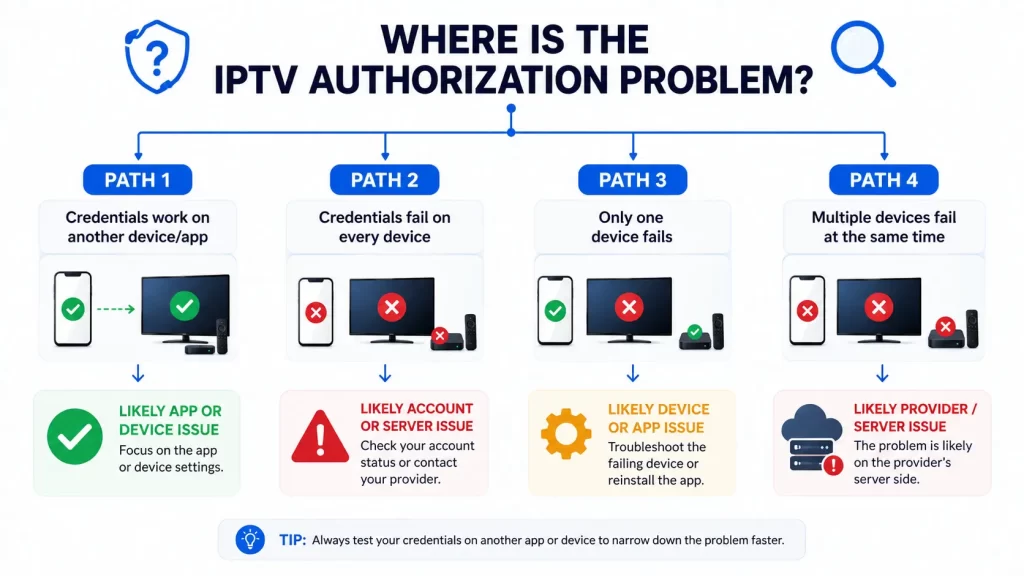
If your credentials work elsewhere but fail in one specific application, the problem may be application-specific.
Testing another compatible player can help determine whether the issue comes from:
- The IPTV application
- Device compatibility
- Login method
- Stored application data
If the same credentials fail everywhere, investigate the account, server, and network instead.
15. Clear the IPTV App Cache
On Android TV and compatible Android devices, clearing an application's cache can sometimes resolve temporary application problems.
Before doing this, make sure you have your login details available.
After clearing the cache:
- Restart the application.
- Enter your credentials again.
- Test the login.
Do not clear application data unless you understand that doing so may remove saved settings and accounts.
16. Test Another Network
If the login works on one network but fails on another, the network may be involved.
For example, you can compare:
- Home Wi-Fi
- Ethernet
- Another authorized network
- Mobile hotspot where appropriate
If the problem consistently occurs only on one network, investigate that network's connection, DNS configuration, router, or firewall settings.
IPTV Login Troubleshooting Table
| Problem | Possible Cause | What to Check |
|---|---|---|
| Invalid username | Typing error | Re-enter username |
| Invalid password | Incorrect credentials | Check capitalization |
| Server error | Incorrect server URL | Verify server address |
| Connection timeout | Network/server issue | Test connection |
| Login suddenly stopped | Account expired | Check account status |
| Works on another device | App/device problem | Update or change player |
| Works on another network | Network problem | Check router/network |
| Xtream login failed | One of three fields is wrong | URL, username, password |
| Login loops repeatedly | Cached app data | Restart/clear cache |
| EPG missing after login | EPG configuration | Check EPG settings |
| Multiple-device issue | Account limit | Check service terms |
Fastest Way to Fix an IPTV Login Failed Error
If you want to troubleshoot the problem quickly, follow this order:
Step 1
Verify the username.
Step 2
Verify the password.
Step 3
Verify the complete server URL.
Step 4
Check that the account is still active.
Step 5
Test the internet connection.
Step 6
Restart the IPTV player.
Step 7
Restart the device.
Step 8
Update the IPTV player.
Step 9
Remove and re-add the account.
Step 10
Test another compatible player or device.
Step 11
Contact the authorized service if the server or account appears unavailable. If you are struggling with playlist URLs directly, see our IPTV M3U Playlist Not Working Troubleshooting Guide.
This order helps avoid changing several variables at once.
Why IPTV Login Works on One Device but Not Another
If the same authorized credentials work on one device but not another, the credentials may not be the problem.
Possible causes include:
- Different IPTV player
- Incorrect server field
- Different login method
- Application cache
- Device compatibility
- Network differences
- Account device restrictions
Compare the settings on both devices carefully.
Why IPTV Login Suddenly Stops Working
A previously working login can fail for several reasons.
The most common possibilities are:
- Account expiration
- Password change
- Server address change
- Temporary server outage
- Network problem
- Application update
- Device issue
- Account connection limit
Start with the simplest checks before reinstalling anything.
Frequently Asked Questions
Why does my IPTV say "Login Failed"?
The most common causes are incorrect credentials, an incorrect server URL, expired authorization, network problems, or temporary server issues. Check our complete FAQ for more common streaming answers.
Why is my IPTV username and password not working?
Check that both values are copied exactly from the authorized source. Also verify that the account is still active.
Why is my IPTV server URL not working?
The URL may contain a typo, outdated domain, incorrect port, or incorrect protocol. Copy the complete server address again.
Why does Xtream Codes say login failed?
Xtream Codes-style login generally requires a server URL, username, and password. Verify all three fields carefully.
Why did my IPTV login stop working suddenly?
Check account status, server availability, recent credential changes, network connectivity, and application updates.
Should I reinstall my IPTV player?
Not necessarily. First check your credentials, server URL, account status, and internet connection. Reinstalling should be considered only if the application itself appears to be malfunctioning.
Why does IPTV work on my phone but not my TV?
The problem may be the TV's IPTV player, network connection, device compatibility, or incorrect login settings.
Can an IPTV account stop working because of multiple devices?
Some services may impose limits on simultaneous connections or registered devices. Check the conditions associated with your authorized account.
Does changing the IPTV player fix login problems?
It can if the problem is specific to the original application. If the account or server is unavailable, changing players will not fix the underlying issue.
Conclusion
An "IPTV Login Failed" message does not always mean that your username or password is wrong.
The problem can originate from the credentials, server URL, account status, internet connection, IPTV player, device, or server itself.
Start by carefully checking the username, password, and complete server URL.
Then confirm that your authorized account is active and that your internet connection works normally.
If the credentials are correct, restart the player and device, update the application, and test another compatible player or network.
By checking each component separately, you can identify whether the problem is related to your login information, device, network, application, or IPTV service.