IPTV Channel Switching Slow in 2026: Why Channels Take Too Long to Load and How to Fix It
IPTV Channel Switching Slow in 2026: Why Channels Take Too Long to Load and How to Fix It
IPTV channel switching slow troubleshooting guide
Experiencing slow IPTV channel switching can be extremely frustrating when you expect instant live television access. You press a button on your remote control to switch to another channel, only to watch a blank screen, a spinning loading indicator, or a frozen frame for three, five, or even ten seconds before playback finally begins.
It is vital to understand that a delay during channel switching is fundamentally different from continuous IPTV buffering. While buffering involves video playback stopping and pausing midway through a show or live match, channel switching slowness—often referred to as channel startup delay, zapping lag, or slow stream initialization—happens exclusively when changing between live channels. In many cases, once the initial stream finishes connecting and rendering, playback remains completely smooth and stable without further interruptions.
However, when every channel selection takes several seconds to open, your entire viewing experience suffers. In this comprehensive 2026 guide, we will analyze why IPTV channels take too long to load, break down the exact technical stages of channel startup, distinguish between player, network, and server bottlenecks, and provide step-by-step diagnostic methods and practical fixes to speed up your channel response time. Whether you use a Smart TV, Firestick, Android TV box, or mobile application, this expert troubleshooting walkthrough will help you achieve optimal streaming performance on OMNIPTV and all authorized streaming setups.
Why Is IPTV Channel Switching So Slow?
To fix slow channel switching, you must first understand what occurs under the hood when you select a channel. Unlike traditional cable or satellite TV—where broadcast frequencies are constantly received by your tuner simultaneously—IPTV relies on unicast or multicast Internet Protocol streams that must be individually established on demand.
When you switch to a new channel in your IPTV player, the software and hardware must execute a multi-step sequence in rapid succession:
- User Selection: You press a channel button, sending a command to the IPTV player application.
- Stream Request: The IPTV player parses the playlist metadata and sends a network request to the streaming server URL.
- Server Response: The provider's server or edge node authenticates your request and begins delivering the transport stream data chunks.
- Data Arrival: The initial packets arrive over your home network at your streaming device.
- Player Initialization & Buffering: The IPTV player buffers a small amount of data (pre-buffer) to prevent immediate playback drops.
- Video Decoding: The device's video decoder (hardware or software) initializes the video codec (such as H.264, H.265/HEVC, or AV1) and identifies keyframes (I-frames).
- First Frame Render: The decoder processes the first I-frame and displays it on your screen.
- Playback Stabilization: Audio and video synchronization locks in, and smooth continuous playback is established.
If a delay occurs at any single stage in this sequence—whether due to network latency, DNS resolution, player pre-buffer settings, device processor load, or codec decoding overhead—your channel startup time increases significantly.
It is also critical to realize that raw internet download speed alone does not determine channel zapping speed. A user with a 1,000 Mbps fiber connection can still experience slow channel zapping if their network latency is high, their Wi-Fi signal suffers from jitter, or their streaming device has a weak processor that struggles to decode high-bitrate video streams.
Slow Channel Switching vs IPTV Buffering
Many streaming users group all playback delays under the generic term "buffering." However, diagnosing your setup requires separating channel switching delay from mid-stream buffering.
Here is how the two issues compare:
| Feature / Behavior | Slow IPTV Channel Switching | IPTV Buffering |
|---|---|---|
| Primary Symptom | Long delay or black screen when selecting a new channel | Repeated pausing, stuttering, or looping during playback |
| Timing | Occurs strictly during channel startup / zapping | Occurs during ongoing stream playback |
| Post-Startup Quality | Playback is smooth once the stream opens | Playback continues to freeze periodically |
| Main Root Causes | Latency, stream handshake, pre-buffer size, decoder speed | Insufficient bandwidth, network congestion, packet loss |
| Primary Fix Focus | Player settings, latency reduction, Ethernet, hardware acceleration | Bandwidth optimization, router reboot, server check |
If your main issue is video freezing repeatedly after a channel has already started playing, refer to our dedicated IPTV buffering troubleshooting guide for continuous playback fixes. If your channels take several seconds to open but play fine afterwards, continue reading this guide.
What Causes Slow IPTV Channel Switching?
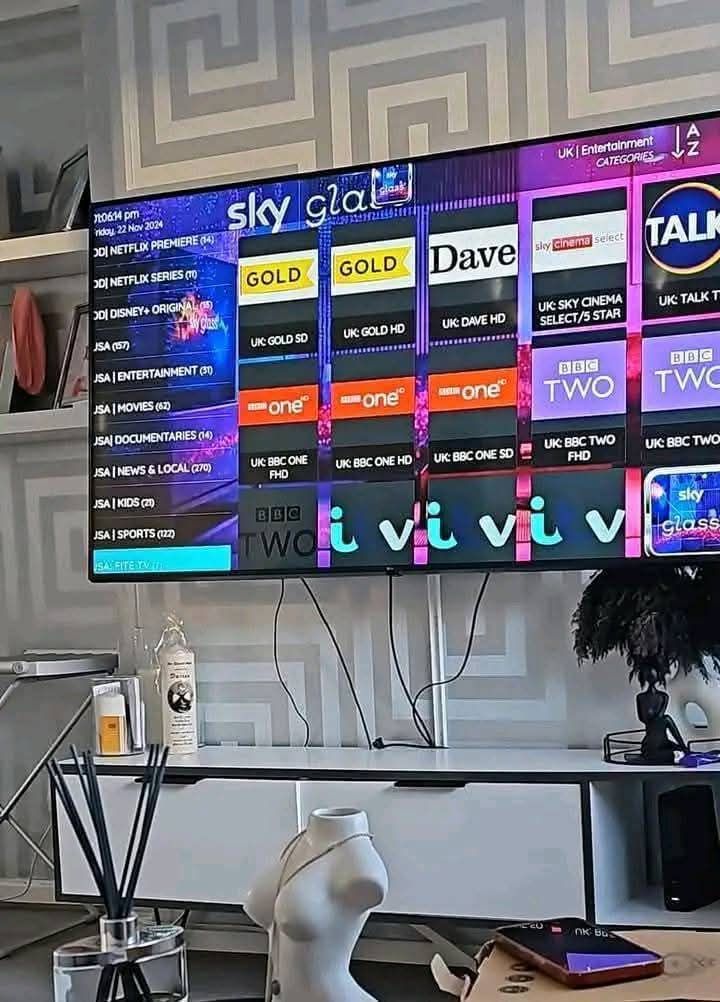 Diagram explaining the IPTV channel startup process
Identifying the root cause of slow channel startup requires examining the entire streaming chain. Here are the primary factors responsible for channel switching lag:
Slow Stream Startup & Handshake
Each channel in an IPTV playlist links to a specific stream URL. When changing channels, your IPTV application must disconnect from the previous socket and open a new HTTP/HLS/TS connection to the new stream address. If the stream server requires a complex handshake, token authentication, or SSL negotiation, this connection phase adds noticeable seconds before data even arrives.
IPTV Player Pre-Buffering Settings
To ensure playback stability, IPTV applications buffer a small amount of video data before rendering the first frame. If your player is configured to pre-buffer 3 to 5 seconds of stream data before initiating playback, the channel cannot appear on screen until that entire buffer is filled. While larger buffer sizes prevent mid-stream buffering, they directly increase channel switching delay.
Network Latency and Packet Jitter
While bandwidth refers to the amount of data transferred per second, latency measures how quickly a packet travels from your device to the server and back. High latency (ping) or packet jitter directly slows down the initial connection request for every channel. Even on a high-speed connection, a 150ms ping time creates a noticeable lag during channel zapping compared to a 15ms connection.
Weak or Congested Wi-Fi Connections
Wireless connections are susceptible to signal degradation, physical obstacles, radio frequency interference from neighboring routers, and internal family network traffic. When a Wi-Fi connection drops packets during stream initialization, the player must re-transmit packets, delaying the initial frame render.
Device Performance & Resource Constraints
Older Smart TVs, low-cost streaming dongles, and outdated TV boxes often feature limited multi-core CPUs, low RAM capacity, and slow internal flash storage. When memory is low or multiple background apps are running, the operating system struggles to allocate resources to the video decoder quickly, resulting in delayed channel loading.
IPTV Player Software Optimization
Not all IPTV applications handle stream switching efficiently. Some players teardown and rebuild the video rendering engine on every channel change, whereas optimized players maintain an active decoder surface to swap stream inputs smoothly. Using an outdated or poorly optimized player can double your channel response times.
High-Bitrate and 4K UHD Streams
High-definition and 4K streams carry significantly larger data packets and require advanced compression codecs like H.265 (HEVC). When you switch to a 4K live channel, your player must receive a larger initial data chunk and the hardware decoder must process a complex keyframe before display. As a result, high-bitrate and 4K streams may naturally take slightly longer to initialize than standard 720p HD streams.
Codec and Hardware Decoder Compatibility
If your IPTV player is set to software decoding (using the CPU) instead of native hardware decoding (using dedicated GPU/VPU hardware), decoding high-resolution video frames requires massive computational overhead, causing slow channel response times or brief black screens upon zapping.
Server or Stream-Specific Factors
If channel zapping is instant on 90% of your channel list but slow on specific international or sports feeds, the issue lies with the source feed initialization rather than your home hardware. Different stream sources use varying keyframe intervals (GOP size), which dictates how quickly a decoder can lock onto the video.
Test the Best IPTV Service
Not sure if OmniPTV is right for you? Try our premium 4K streaming service completely risk-free.
How to Test Why Your IPTV Channels Are Loading Slowly
Before making sweeping changes to your network or buying new hardware, use this systematic diagnostic process to isolate where the channel switching delay originates:
- Test Multiple Channels Across Categories: Switch between local news, entertainment, sports, and international channels. Determine if every channel takes 5+ seconds to load, or if only specific channels or categories suffer from startup lag.
- Compare Standard HD and 4K Channels: Select a standard 720p HD channel and measure its startup speed, then switch to a 4K UHD channel. If HD channels open in under 2 seconds while 4K channels take 6 seconds, your device decoder or bandwidth processing is the limiting factor.
- Measure Approximate Startup Time with a Timer: Use a stopwatch or smartphone timer to measure the exact time between pressing the remote button and the appearance of the first video frame. Times under 2 seconds indicate excellent zapping performance; times exceeding 4–5 seconds require optimization.
- Compare Ethernet vs Wi-Fi Performance: Temporarily connect an Ethernet cable directly from your router to your streaming device or Smart TV. If channel switching speed improves dramatically, Wi-Fi latency or interference was the primary bottleneck.
- Test a Second Compatible IPTV Player: Install an alternative official IPTV application on your device and load your authorized credentials. If Channel A opens in 1.5 seconds on Player B but takes 5 seconds on Player A, your software settings or player app are responsible.
- Test Your Playlist on a Secondary Device: Load your subscription on a modern smartphone, tablet, or secondary streaming box on the same home network. If zapping is lightning-fast on your phone but slow on your Smart TV, the TV's internal processor or app optimization is at fault.
- Verify General Internet Latency & Speed: Run a network diagnostic test on your streaming device. Check both download speed and latency (ping). A ping rate above 100ms indicates elevated network latency that affects stream initialization.
- Test During Peak vs Off-Peak Hours: Compare channel zapping speeds at 2:00 PM versus 8:00 PM on a Sunday. If zapping slows down universally across all devices during evening prime time, regional ISP throttling or network congestion may be present.
- Perform a Full Application & Power Restart: Force-close your IPTV application, clear its cache, and reboot your streaming device. Retest zapping to see if clearing temporary system memory restores initial response speeds.
- Check Stream-Specific Persistence: If a specific channel always takes 6 seconds to load regardless of device, player, or network connection, note it as a stream-side keyframe interval characteristic.
How to Improve IPTV Channel Switching Speed
 Troubleshooting setup for slow IPTV channel loading
Once you have identified the primary bottlenecks, apply these practical fixes to minimize channel startup delays and achieve faster zapping speeds:
1. Adjust IPTV Player Buffer Settings
Open your IPTV player settings menu and navigate to Playback or Network options. Look for settings labeled Pre-Buffer Time, Buffer Size, or Stream Buffer. If set to "High" or "5 Seconds", lower it to "Small", "Normal", or "1 Second" (or ~500ms - 1000ms). This instructs the player to render video immediately upon receiving initial packets rather than waiting for an extensive data buffer to fill.
2. Switch to Hardware Video Decoding
In your IPTV player's decoder settings, ensure video decoding is set to Hardware (HW) or Hardware+ rather than Software (SW). Hardware decoding offloads video processing to your device's dedicated graphics hardware, dramatically shortening the time required to process the initial video frame.
3. Connect via Wired Ethernet Cable
Whenever possible, connect your Smart TV, Fire TV, or Android box to your router using a physical Cat6 Ethernet cable. Wired networking eliminates wireless interference, packet loss, and signal drops, lowering latency and accelerating stream handshake response times.
4. Optimize 5 GHz Wi-Fi Connection
If Ethernet is impossible, switch your streaming device from a 2.4 GHz Wi-Fi network to a 5 GHz or Wi-Fi 6 band. 5 GHz offers significantly higher data throughput and lower latency, provided your device is within reasonable proximity to the router.
5. Restart Your Streaming Device & Router
Periodic reboots clear accumulated system caches, free up clogged RAM, and refresh network routing tables. Power-cycle your modem and router by unplugging them for 30 seconds, and restart your streaming device from its system settings menu.
6. Clear IPTV App Cache Regularly
Over time, IPTV applications accumulate cached data, EPG guides, and temporary images that can slow down internal database queries during channel zapping. On Android TV or Firestick, navigate to Settings > Applications > Manage Installed Applications > [Your IPTV App] and select Clear Cache. Never select "Clear Data" unless you are prepared to re-enter your credentials.
7. Close Background Applications
Running multiple streaming, gaming, or utility apps in the background consumes valuable CPU cycles and system memory. Use a task manager or device settings to force-stop unnecessary background applications before launching your IPTV player.
8. Free Up Internal Storage Space
If your streaming device has less than 1 GB of free internal storage remaining, the operating system's virtual memory swapping slows down significantly. Uninstall unused apps and delete temporary downloads to maintain at least 15–20% free storage space.
9. Keep IPTV Application & OS Updated
Always use the latest stable release of your IPTV player application from official app stores. Software updates frequently contain player engine optimizations, improved decoder libraries, and bug fixes that directly enhance stream zapping response.
10. Contact Official Support for Stream-Specific Issues
If a specific group of live channels remains consistently slow while the rest of your playlist zaps quickly, contact your provider's official customer support. If you are an OMNIPTV subscriber, reach out to our team via Contact Support so our engineers can inspect the stream feed source.
Why IPTV Channel Switching Can Differ Between Devices
The hardware architecture and operating system of your streaming hardware play a massive role in how fast channels zappers respond. Here is how channel switching behavior varies across popular devices:
- Android TV & Google TV (Nvidia Shield, Chromecast with Google TV, Xiaomi Box): Android TV devices with robust processors and dedicated media decoders offer some of the fastest zapping times available. When paired with native hardware acceleration, channel switching can often occur in under 1.5 seconds. For step-by-step app setup, visit our Android TV setup guide.
- Fire TV & Firestick (Amazon Fire TV Stick 4K Max, Cube): Newer Fire TV models feature capable quad-core processors that deliver swift channel zapping. However, older Firestick models (1st and 2nd Gen) may experience 3–5 second channel delays due to limited RAM and thermal throttling under heavy decoding loads.
- Samsung & LG Smart TVs (Tizen OS & webOS): Built-in TV operating systems prioritize picture processing over raw application execution. While high-end OLED/Neo QLED models perform zapping smoothly, budget and mid-range Smart TVs often exhibit a 2 to 4 second startup delay due to conservative app CPU allocation. Review our comprehensive Smart TV setup guide for optimization tips.
- Apple TV 4K: Powered by Apple's powerful A-series bionic chips, Apple TV delivers industry-leading zapping speeds, often opening HD streams instantaneously when backed by a low-latency network connection.
- Smartphones & Tablets (iOS & Android): Mobile devices generally possess superior CPU and GPU hardware compared to budget TV dongles. When connected to high-speed 5GHz Wi-Fi, mobile IPTV applications zaps channels nearly instantaneously.
Why Some 4K IPTV Channels Take Longer to Start
 4K live streaming channel switching and bitrate illustration
As 4K Ultra HD live streaming becomes increasingly popular, many users notice that switching to a 4K sports feed or movie channel takes 1 to 3 seconds longer than switching to a standard 1080p HD channel.
This additional startup duration is normal and expected due to the underlying technology of 4K streams:
- Massive Bitrate Requirements: A high-quality 4K 60FPS stream delivers 15 to 30 Megabits of video data per second—roughly 3 to 5 times the data density of a 1080p stream. Your network and player must receive a much larger initial burst of data packets before playback begins.
- HEVC / H.265 Keyframe Spacing: 4K streams almost universally employ High Efficiency Video Coding (HEVC/H.265) compression. To optimize bandwidth, HEVC streams place keyframes (I-frames) further apart in the stream timeline. The decoder must wait for the next full I-frame before it can display a complete picture on screen.
- Hardware Decoder Workload: Processing 3840x2160 pixels at 60 frames per second requires intense real-time mathematical calculation by your device's video processing unit. Initializing the 4K pipeline requires several extra milliseconds compared to 1080p.
Experiencing a brief 2 to 3 second initialization delay on a true 4K UHD live channel does not mean your system is broken. However, if 4K zapping takes upwards of 8 to 10 seconds, implementing the network latency and hardware decoding optimizations outlined above will help compress that startup window. For more insights on maximizing resolution performance, explore our picture quality guide.
Why Are Some IPTV Channels Fast While Others Are Slow?
It is common for users to observe that Channel A (e.g., a major national news network) opens in 1.5 seconds, while Channel B (e.g., an international premium sports channel) takes 5 seconds to load on the exact same setup.
When zapping speeds vary across individual channels, the issue is almost always stream-specific:
- Source Encoding Configuration: Different content originators configure their stream encoders with different Group of Pictures (GOP) sizes. A shorter GOP size means keyframes occur frequently (e.g., every 1 second), allowing your player decoder to lock onto the stream instantly. A longer GOP size (e.g., keyframes every 4 seconds) forces your player to wait longer for a keyframe.
- Edge Server Proximity: Major popular channels are frequently cached on primary edge distribution servers closer to your geographical location, resulting in lower latency. Niche or international streams may route from secondary origin servers, adding network travel hops.
- Playlist Format & Protocol: Channels formatted as Direct TS (MPEG-TS) streams often initialize differently than HTTP Live Streaming (HLS/M3U8) adaptive streams. HLS streams require your player to download a master playlist manifest file before fetching the first media segment.
Understanding this distinction prevents you from needlessly altering your local router or device settings when only a handful of specific channels exhibit slower zapping response times.
Common Mistakes When Fixing Slow IPTV Channel Switching
When troubleshooting slow channel loading, avoid these common mistakes that can degrade your setup or waste time:
- Assuming Zapping Delay Is Always Mid-Stream Buffering: Confusing channel startup delay with continuous buffering leads to applying wrong fixes. Lowering video resolution or changing DNS won't fix a player buffer setting issue.
- Immediately Upgrading Internet Bandwidth: Upgrading from 200 Mbps to 1,000 Mbps will not speed up channel zapping if high Wi-Fi latency or an underpowered TV processor is the real bottleneck.
- Repeatedly Reinstalling the IPTV Player: Uninstalling and reinstalling your player application rarely fixes channel zapping delays unless application data was corrupted. Adjusting decoder settings is far more effective.
- Changing Multiple Settings Simultaneously: Modifying buffer size, video decoder, DNS server, and Wi-Fi band all at once makes it impossible to determine which adjustment resolved the issue or caused new playback glitches.
- Blaming the Smart TV Without Secondary Testing: Assuming the entire streaming service is slow without testing on a smartphone or computer leads to misidentifying the fault source.
- Neglecting Device Overheating & Storage Limits: Operating a streaming stick buried behind a hot TV panel with 99% full storage throttles processor performance, causing system-wide app sluggishness.
- Expecting Instant Zapping on 4K HEVC Streams: Expecting a 30 Mbps 4K 60FPS stream to load in 200 milliseconds like analog cable ignores the physical constraints of digital video decoding.
- Using Unofficial or Sideloaded APKs: Downloading unverified, modified IPTV applications from third-party websites can introduce malware and inefficient background code that degrades playback responsiveness. Always stick to official store releases.
- Making Random DNS Modifications: Switching DNS servers can improve domain lookup times slightly, but DNS plays zero role in stream buffering speed once the initial connection is established.
- Using a VPN as a Universal Solution: While a VPN can prevent ISP bandwidth throttling, routing your entire stream through an encrypted VPN tunnel increases network ping latency, which can actually increase channel zapping delay if the VPN server is distant.
Quick IPTV Channel Switching Checklist
Keep this quick reference checklist handy whenever you experience sluggish channel response times:
- Test multiple channels to see if zapping slowness affects all streams or specific feeds.
- Compare standard 1080p HD and 4K channels to evaluate decoder performance.
- Restart your IPTV player application and power-cycle your streaming device.
- Reboot your home internet router and modem.
- Check IPTV player settings and set Pre-Buffer time to 1 second or Small.
- Enable Hardware (HW) Video Decoding in your IPTV player options.
- Connect your device via a physical Ethernet cable or switch to 5 GHz Wi-Fi.
- Close background applications and clear your IPTV app cache via system settings.
- Verify internal device storage has at least 15–20% free space available.
- Test your authorized playlist on a secondary device (smartphone or PC) to isolate hardware issues.
- Verify you are using official, updated versions of your IPTV software.
- Review your provider's available subscription plans or check OMNIPTV setup guides for hardware optimization.
Upgrade Your Entertainment
Get access to over 25,000 live channels and 130,000+ VODs. Instant activation on all devices.
Frequently Asked Questions
Conclusion
Slow IPTV channel switching does not mean you have to settle for a frustrating viewing experience. By recognizing that channel startup delay is distinct from mid-stream buffering, you can systematically diagnose whether your bottleneck stems from network latency, player buffer configuration, hardware decoder overhead, or stream keyframe properties.
By reducing player pre-buffers, enabling hardware acceleration, switching to a low-latency wired Ethernet connection, and keeping your device memory clean, you can dramatically accelerate zapping response times across all live channels.
For viewers looking for a premium, reliable streaming experience built on optimized high-speed infrastructure, explore OMNIPTV pricing plans, review our complete installation setup guides, or test our service on your preferred Smart TV or Android TV device today.