How to Reduce IPTV Buffering: 12 Proven Ways to Improve Streaming Quality
How to Reduce IPTV Buffering: 12 Proven Ways to Improve Streaming Quality
How to reduce IPTV buffering and improve streaming quality
Introduction
You are sitting down to watch a highly anticipated live sports match or a premium VOD movie on your television. Suddenly, the picture freezes, a loading circle appears, and the stream stutters.
This is IPTV buffering, and it is one of the most frustrating experiences in home entertainment.
When this happens, the immediate reaction is often to assume that the IPTV provider is failing. While the service provider can occasionally be the cause, buffering does not automatically mean the IPTV service itself is bad.
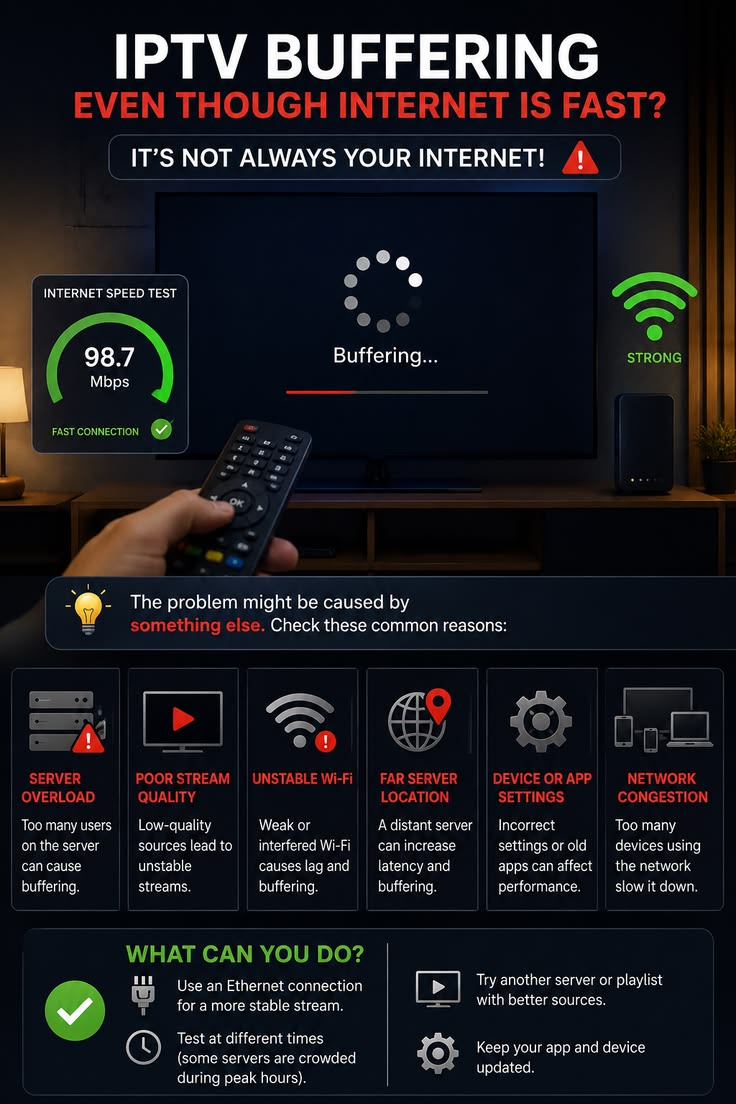
A digital live stream must travel through a complex chain of connections before it reaches your eyes. Buffering can originate from your internet connection, your Wi-Fi signal, your router, network congestion, your specific streaming device, your IPTV player application, the stream's high bitrate (especially 4K), a specific channel, or peak-hour internet traffic.
The correct approach is to identify the source of the problem before you start changing random settings. Whether you are using a premium service like OmniPTV or exploring different options, this guide provides 12 practical ways to systematically diagnose and reduce IPTV buffering to improve your streaming stability.
Quick Answer: How Do You Reduce IPTV Buffering?
There is no single fix that works for every situation, but if you want immediate, practical steps, you should start with these:
- Check internet stability: Run a speed test while the buffering is happening.
- Restart router and device: Clear temporary network and hardware glitches.
- Reduce network congestion: Stop large downloads and disconnect unused devices.
- Test Ethernet: Plug your device directly into the router to rule out Wi-Fi issues.
- Improve Wi-Fi: If you must use Wi-Fi, test the 5 GHz band.
- Test another channel: See if the buffering is limited to a single stream.
- Test another IPTV player: Try a different application with a different video decoder.
- Reduce stream quality if necessary: Switch from 4K to HD to see if stability improves.
- Check device performance: Close background apps or test a faster streaming device.
- Test during peak hours: Compare daytime performance with evening performance.
- Compare with other streaming services: See if YouTube or Netflix also buffer.
- Contact support if the issue persists: Reach out to your provider's technical team with your findings.
Test the Best IPTV Service
Not sure if OmniPTV is right for you? Try our premium 4K streaming service completely risk-free.
What Causes IPTV Buffering?
To fix buffering, you first need to understand what it actually is.
Buffering occurs when your IPTV player cannot receive video data quickly or consistently enough to maintain continuous playback.
When you watch a live broadcast, your device tries to download a small "buffer" (a few seconds of video) ahead of what you are currently watching. If the data arrives slower than it is being played, the buffer empties, and the video must pause to wait for more data to arrive.
This data delivery can be interrupted by several factors:
- Bandwidth: You do not have enough overall internet speed.
- Latency: It takes too long for data to travel from the server to your device.
- Jitter: The data arrives at highly inconsistent speeds.
- Packet loss: Chunks of video data are lost in transit over the internet.
- Wi-Fi interference: Your wireless signal drops or fluctuates.
- Network congestion: Other devices in your home are using all the bandwidth.
- Server/stream conditions: The source stream itself is unstable or overloaded.
1. Check Your Internet Connection
Many users assume their internet is fine because they pay for a "fast" connection. However, raw download speed is not the only factor.
When you experience buffering, you must evaluate:
- Download speed: The total volume of data you can receive.
- Upload speed: Less critical for downloading streams, but important for requesting data.
- Ping / Latency: How fast your device talks to the server.
- Jitter: The variation in that latency.
- Packet loss: Missing data.
You must perform a speed test while the buffering is actually happening.
A speed test performed at 10:00 AM on a Tuesday does not reflect your internet stability at 8:00 PM on a Saturday during a major sports event. Compare the results during the daytime, evening, and peak viewing hours to see if your local ISP is throttling your connection or suffering from congestion. Review our IPTV Buyer's Guide for more on evaluating connection needs.
2. Restart Your Router and IPTV Device
It sounds cliché, but restarting your equipment is often the fastest way to resolve temporary network or hardware issues.
Routers and Smart TVs are essentially computers that run continuously for months. Their memory can become full, and network routing tables can become corrupted, leading to dropped packets and buffering.
Practical steps:
- Close your IPTV application completely.
- Restart your streaming device (Smart TV, Android box, Firestick).
- Unplug your internet router from the wall.
- Wait 30 seconds.
- Plug the router back in and wait for the connection to fully stabilize.
- Test your IPTV stream again.
While restarting is a great first step, it does not permanently fix buffering if the underlying issue is poor Wi-Fi or low bandwidth.
3. Reduce Other Network Traffic
Your home internet connection is a single pipe shared by every device in your house.
If multiple devices are competing for bandwidth simultaneously, your live stream may suffer. High-bandwidth activities include:
- Streaming 4K Netflix or YouTube
- Downloading large video game updates
- Performing cloud backups (like iCloud or Google Drive)
- Video conferencing calls
- Multiple smartphones or tablets active simultaneously
Practical steps:
- Pause large background downloads on computers or gaming consoles.
- Stop unnecessary high-bandwidth streams on other TVs.
- Disconnect unused devices from the network.
- Test the IPTV stream again to see if stability improves.
4. Try Ethernet Instead of Wi-Fi
 Wi-Fi vs Ethernet for more stable IPTV streaming
If you are experiencing buffering over Wi-Fi, the most important diagnostic step you can take is to connect your device directly to the router using an Ethernet cable.
Benefits of Ethernet:
- A wired connection provides significantly more consistent data delivery.
- It eliminates wireless interference from walls, microwaves, and neighboring networks.
- It guarantees a stable connection directly to the router.
Important: Ethernet does not automatically eliminate buffering if your internet speed is fundamentally too slow or if the source stream is broken. However, if the buffering completely disappears when you use Ethernet, then your Wi-Fi is a strong suspect for the original problem. If you need help with TV setup, read our guide on Setting Up IPTV on Smart TV.
5. Improve Your Wi-Fi Connection
If you absolutely must use Wi-Fi, you need to ensure it is optimized for heavy video streaming.
Modern routers typically offer two wireless bands:
- 5 GHz: Can provide much higher throughput and faster speeds, but it has a shorter range and struggles to penetrate solid walls.
- 2.4 GHz: Can provide better range and pass through walls easier, but offers lower maximum speeds and is highly prone to interference.
Do not assume one band is universally better; it depends on your specific environment.
Practical recommendations:
- Move the router closer to the streaming device if possible.
- Avoid placing the router inside metal cabinets or directly behind thick walls.
- Keep the router elevated and unobstructed where practical.
- Test both the 2.4 GHz and 5 GHz bands to see which provides the smoothest playback for your specific layout.
6. Check Whether Only Certain IPTV Channels Buffer
Channel-specific buffering provides a vital diagnostic clue.
If you experience stuttering, test a variety of streams:
- Different channels
- Different categories (sports, news, movies)
- Different resolutions (HD, Full HD, 4K)
If every channel buffers constantly, the issue is likely related to your internet, network, or device.
However, if only one specific channel buffers while hundreds of others play perfectly, it strongly suggests that the problem is stream-specific. The source of that particular broadcast may be experiencing technical difficulties, which is entirely separate from your local network.
7. Test HD Instead of 4K
Higher-resolution streams require significantly more bandwidth and processing power.
- HD (720p): Requires moderate bandwidth.
- Full HD (1080p): Requires strong, stable bandwidth.
- 4K (Ultra HD): Requires very high, highly consistent bandwidth.
If a 4K stream is buffering, try switching to a Full HD or HD version of the same broadcast. If the lower-quality stream plays flawlessly, it indicates that either your internet bandwidth cannot sustain the high data rate required for 4K, or your streaming device lacks the processing power to decode the heavy 4K file smoothly in real-time.
Remember, a 4K stream is not always superior if your network cannot support it; a stable Full HD stream provides a much better viewing experience than a buffering 4K stream.
Upgrade Your Entertainment
Get access to over 25,000 live channels and 130,000+ VODs. Instant activation on all devices.
8. Try a Different IPTV Player
The IPTV service (the provider of the streams) and the IPTV player (the app you use to watch them) are two separate things.
An inefficient, outdated, or poorly configured IPTV player can cause severe buffering, even on a fast connection. Potential causes include:
- Outdated application versions
- Corrupted app cache
- Video decoder compatibility issues
- Incorrect hardware acceleration settings
- General application instability
What to do:
- Update the player from your device's app store.
- Restart the application.
- Clear the app cache where supported by your device.
- Test another compatible player (e.g., TiviMate, Smarters Pro, XCIPTV).
Testing a second application is a fast way to determine if your primary app is the root cause of the playback issues. If you use Android TV, review our guide on IPTV for Android TV.
9. Check Your Streaming Device
Not all streaming hardware is created equal. The device itself can be the bottleneck.
Consider what you are using:
- Older Smart TVs often lack the processing power and memory for heavy live streaming.
- Budget streaming sticks may overheat or struggle with high-bitrate 4K.
- Premium devices like Nvidia Shield or Apple TV 4K generally handle streams much better.
Potential device causes:
- Overheating
- Low available memory
- Too many background apps running
- Outdated system software
Practical steps:
- Restart the device to clear its memory.
- Close unnecessary applications running in the background.
- Update the device's operating system.
- Clear system cache where applicable.
- If your Smart TV constantly buffers, test the Omni IPTV service on another compatible device, like a smartphone or a computer, to see if the hardware is the limitation.
10. Test IPTV During Peak Viewing Hours
Internet traffic is not consistent throughout the day. Evening and weekend traffic can be substantially higher than weekday mornings.
During peak hours, your local Internet Service Provider (ISP) may experience network congestion in your neighborhood, causing your available bandwidth to drop significantly.
Compare your streaming performance during the afternoon, the evening, and the weekend. Test your internet speed and test different channels. If buffering occurs only during peak hours, congestion somewhere in the connection chain becomes much more relevant. This does not automatically mean your IPTV provider is at fault; local ISP throttling and neighborhood congestion are common culprits.
11. Check Your Router and Home Network
If you have optimized your Wi-Fi and restarted everything, you may need to look closer at your router.
Consider:
- Router age: An old router may struggle to route heavy video traffic efficiently.
- Firmware: Outdated firmware can cause network drops.
- Network load: Too many connected smart home devices can overwhelm a basic router.
Practical steps:
- Restart the router regularly.
- Check the manufacturer's website for firmware updates.
- Improve the router's physical placement.
- Reduce unnecessary connected devices.
- Test a wired connection to bypass wireless routing issues entirely.
Avoid changing advanced Quality of Service (QoS) or port forwarding settings unless you are confident in network administration, as incorrect settings can worsen performance.
12. Compare IPTV With Other Streaming Services
This is an incredibly important diagnostic step. To isolate the problem, you must compare how your network handles different types of video.
Test:
- YouTube
- Netflix or another legitimate VOD streaming service
- General web browsing
- Internet speed test
Possible outcomes:
- If all streaming services buffer: Your internet connection or home network is more likely the source of the problem.
- If only IPTV buffers: IPTV-specific factors, player configuration, device decoding, or stream-specific issues deserve further investigation.
- If only certain IPTV channels buffer: A channel or stream-specific issue is highly possible.
Keep in mind that Netflix and YouTube use adaptive bitrate streaming and aggressive pre-buffering (downloading the movie minutes ahead of what you are watching), making them more resilient to minor network drops than real-time live IPTV. Read more about optimizing specifically for televisions in our Smart TV Quality Guide.
IPTV Buffering Troubleshooting Table
Use this diagnostic table to help isolate the root cause of your buffering:
| What You Observe | What It May Suggest |
|---|---|
| Everything buffers | Internet/network issue possible |
| Only IPTV buffers | IPTV/player/network-specific issue possible |
| Only Wi-Fi buffers | Wi-Fi issue likely |
| Ethernet works normally | Wireless connection is a strong suspect |
| Only one channel buffers | Channel/stream-specific issue possible |
| 4K buffers but HD works | Bandwidth/device/stream factors may be involved |
| One device buffers | Device/player issue possible |
| All devices buffer | Network or service-side issue becomes more likely |
| Only evening buffering | Peak-hour congestion may be involved |
Note: This table provides diagnostic guidance, not absolute proof of a specific failure.
 IPTV buffering troubleshooting from internet connection to streaming device
Troubleshooting IPTV Buffering With OmniPTV
When using the OmniPTV platform, you benefit from a premium infrastructure designed for stability. However, you should still troubleshoot systematically before assuming the service itself is responsible for playback issues.
We recommend that you:
- Test the exact channel that buffers to see if it is a localized issue.
- Test another channel to compare stability.
- Test HD/Full HD/4K streams where available to gauge bandwidth limitations.
- Test during the specific time the issue occurs.
- Test using an Ethernet connection.
- Test another compatible device.
- Test another IPTV player application.
- Compare performance with other live streaming services.
- Record useful diagnostic information (time of day, specific channel, speed test results).
If you have verified your local network and the problem continues, contact OmniPTV support via our official WhatsApp channel for assistance.
Can a VPN Fix IPTV Buffering?
A Virtual Private Network (VPN) is not a universal buffering solution.
It may sometimes help if the buffering is caused by your ISP actively throttling IPTV traffic or if there is a routing issue between your ISP and the streaming server. By encrypting the traffic, the ISP cannot see what type of data you are downloading, which may bypass throttling.
However, a VPN also adds network overhead, increases latency, and can sometimes reduce overall download speeds. We recommend comparing your Omni IPTV service performance with and without a VPN under similar conditions to see if it provides a tangible benefit for your specific network.
Can Changing DNS Reduce IPTV Buffering?
Changing your Domain Name System (DNS) server (e.g., to Google DNS or Cloudflare) mainly affects how quickly domain names are translated into IP addresses during the initial connection setup.
It does not magically increase your overall bandwidth. While changing DNS may help resolve certain connectivity or blocking issues, it is not a universal fix for persistent video buffering.
Quick IPTV Buffering Fix Checklist
Use this concise checklist the next time you experience stuttering:
- Restart router
- Restart IPTV device
- Run speed test
- Check latency/jitter if available
- Disconnect unnecessary devices
- Test 5 GHz Wi-Fi
- Test 2.4 GHz Wi-Fi if appropriate
- Test Ethernet
- Try another IPTV channel
- Test HD instead of 4K
- Update IPTV player
- Clear app cache where supported
- Restart/update device
- Compare daytime and evening performance
- Test other streaming services
- Contact support if the problem continues
Frequently Asked Questions
Final Thoughts
IPTV buffering is a complex issue with multiple possible causes. Raw internet speed is only one factor; Wi-Fi stability, network congestion, device performance, and the specific IPTV player all play critical roles in your viewing experience.
Ethernet is an incredibly useful tool for troubleshooting, and comparing different channels can quickly reveal whether an issue is local or stream-specific. Remember that high-bitrate 4K streams require robust bandwidth, and testing your connection during peak hours provides the most accurate picture of your network's capabilities.
By systematically diagnosing the problem before assuming the service is at fault, you can quickly identify the true bottleneck. If you have optimized your home setup and are looking for a premium streaming experience, explore the robust options available with an Omni IPTV subscription today, or check out our complete Channels List to see what we offer.