How to Set Up IPTV on Smart TV
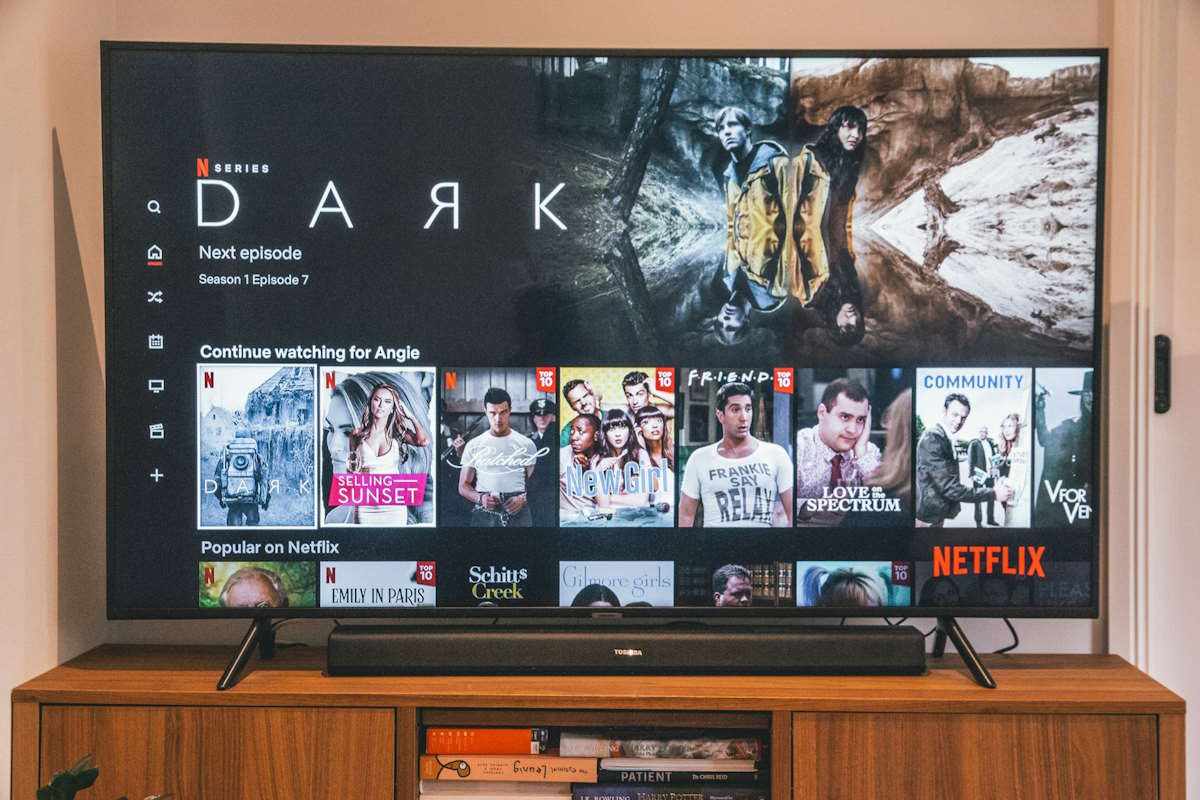
How to Set Up IPTV on Smart TV
How to Set Up IPTV on Smart TV
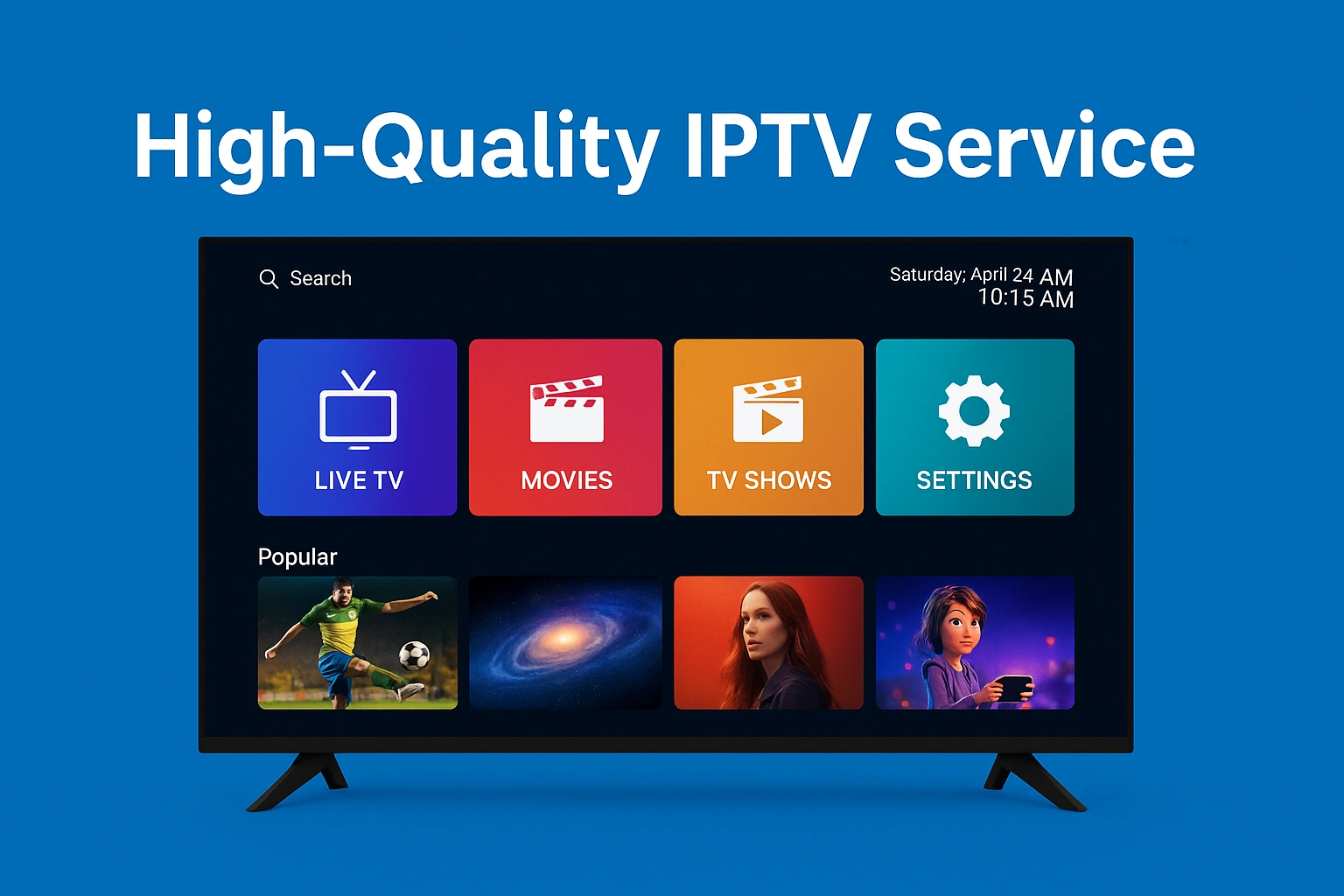
Learning how to set up IPTV on Smart TV can transform your living room into a complete entertainment center. Instead of relying on traditional cable boxes or satellite dishes (see our IPTV vs Cable TV comparison), you can stream thousands of live channels, movies, and TV shows directly through your television's internet connection.
While the process of configuring IPTV on Smart TV might seem technical at first, it is usually straightforward once you understand the basic requirements. In this guide, we will explain everything you need for a successful Smart TV IPTV setup, how to install a compatible application, and how to improve your streaming quality.
What Is IPTV on a Smart TV?
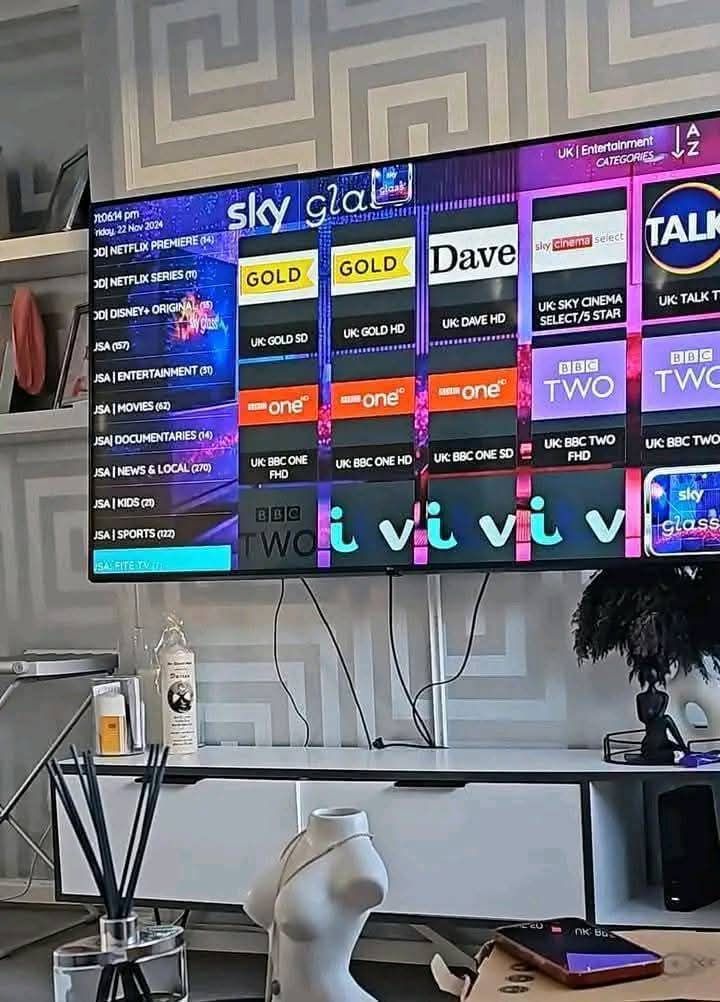
IPTV (Internet Protocol Television) is a method of delivering television content over the internet. When you use a Smart TV, the television connects to your home network and uses an application to decode the video stream provided by your IPTV service.
Because modern Smart TVs act like large computers, you generally do not need an external set-top box if your television supports the right applications. You simply download a player, enter your subscription details, and start watching.
What Do You Need to Set Up IPTV on a Smart TV?
Before you begin the setup process, ensure you have the following:
- A compatible Smart TV: The television must be able to connect to the internet and access an application store.
- A stable internet connection: A reliable Wi-Fi or Ethernet connection is essential for smooth streaming.
- An active IPTV subscription: You need a service provider to supply the actual channels and content.
- A compatible IPTV application: You will need to download an IPTV player from your TV's app store.
- Setup credentials: Depending on your provider, you will need either an M3U playlist URL or Xtream Codes login details (Server URL, Username, and Password).
How to Set Up IPTV on Smart TV
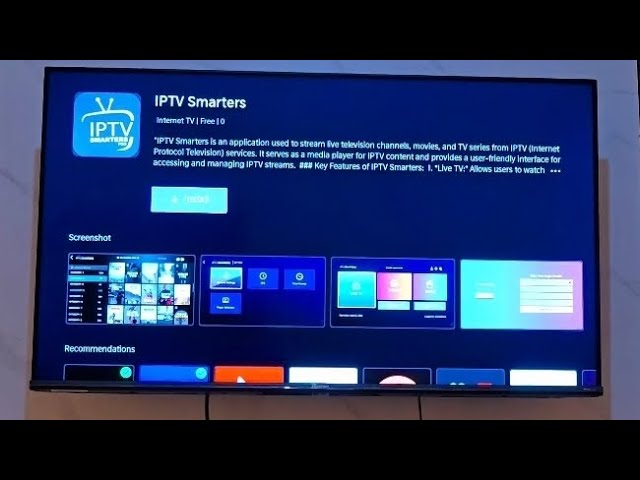 Smart TV IPTV Setup Steps
The general process for configuring an IPTV app for Smart TV is similar across most modern televisions.
Step 1: Connect Your Smart TV to the Internet
Ensure your television is connected to your home network. While Wi-Fi is convenient, connecting your TV directly to your router with an Ethernet cable provides the most stable connection for streaming live video.
Step 2: Check Your Smart TV Platform
Different televisions use different operating systems. For example, Samsung uses Tizen, LG uses webOS, and Sony uses Android TV. Your TV's platform determines which IPTV applications are available in the official app store.
Step 3: Find a Compatible IPTV Application
Open your TV's official application store and search for an IPTV player. Many users search for terms like "IPTV player" or "M3U player." Popular options are often available, but you should only download applications that are officially supported by your TV manufacturer.
Step 4: Install the IPTV Application
Select a highly rated, compatible application and follow the on-screen instructions to download and install it on your television.
Step 5: Add Your IPTV Subscription
Open the newly installed application. You will generally be asked to input your subscription details. If your provider uses an M3U playlist, select the option to "Add M3U URL" and carefully type the link provided by your service. If your provider uses Xtream Codes, select that option and enter the Server URL, Username, and Password.
Step 6: Load Your IPTV Content
After entering your details, the application will connect to the server and download your channel list, categories, and EPG (Electronic Program Guide) data. This may take a few minutes depending on the size of the playlist.
Step 7: Start Watching
Once the playlist has loaded, navigate through the categories or the TV guide to select a channel. Press play, and your stream should begin.
How to Use Omni IPTV on a Smart TV
If you are using the Omni IPTV service, getting started is incredibly simple. We support a wide variety of devices, ensuring you can enjoy your subscription on the hardware you already own.
To use Omni IPTV on Smart TV, you will need to:
- Download a suitable IPTV player from your television's app store.
- Open the welcome email you received after purchasing your Omni IPTV subscription.
- Locate your M3U playlist URL and EPG URL within the email.
- Enter these URLs into your chosen IPTV application.
Once the playlist loads, you will have immediate access to your live channels, movies, and TV shows in stunning quality. If you have not yet selected a plan, you can review our options on the OmniPtv Pricing page or check out the OmniPtv Channel List. For detailed device instructions, visit our complete Setup Guide.
IPTV on Samsung Smart TV
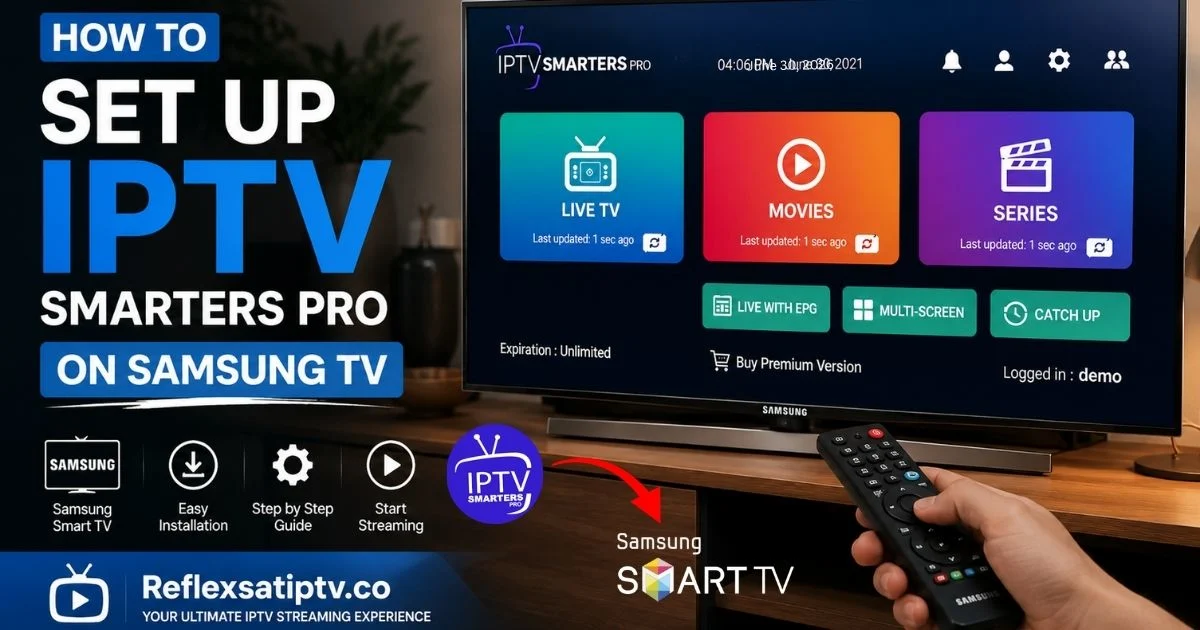 IPTV on Samsung Smart TV
Samsung Smart TVs run on the Tizen operating system. To configure how to install IPTV on Smart TV for Samsung models, navigate to the Samsung Smart Hub and open the Apps section. Search for a compatible IPTV player, install it, and enter your M3U URL or login details. Because Tizen is widely used, you will generally find several capable IPTV applications available.
IPTV on LG Smart TV
LG Smart TVs use the webOS platform. Press the Home button on your remote and navigate to the LG Content Store. Search for an IPTV player, install your preferred application, and launch it to input your setup credentials. Like Samsung, LG's webOS supports many popular IPTV players natively.
IPTV on Android TV and Google TV
Televisions running Android TV or Google TV (such as modern Sony or Philips models) offer the greatest flexibility. Open the Google Play Store on your TV, search for an IPTV player, and install it. Android TV supports a massive variety of streaming applications, making it one of the best platforms for an IPTV Smart TV experience.
What Internet Speed Do You Need for IPTV on Smart TV?
The performance of your stream depends heavily on your internet connection. Keep the following general guidelines in mind:
- SD (Standard Definition): Minimum 5-10 Mbps.
- HD (High Definition): Minimum 15-25 Mbps.
- Full HD / 4K: Minimum 50 Mbps or higher for optimal performance.
Remember that raw download speed is only part of the equation. Connection stability, Wi-Fi signal quality, and network congestion all play a critical role in preventing playback interruptions.
How to Improve IPTV Streaming on Smart TV
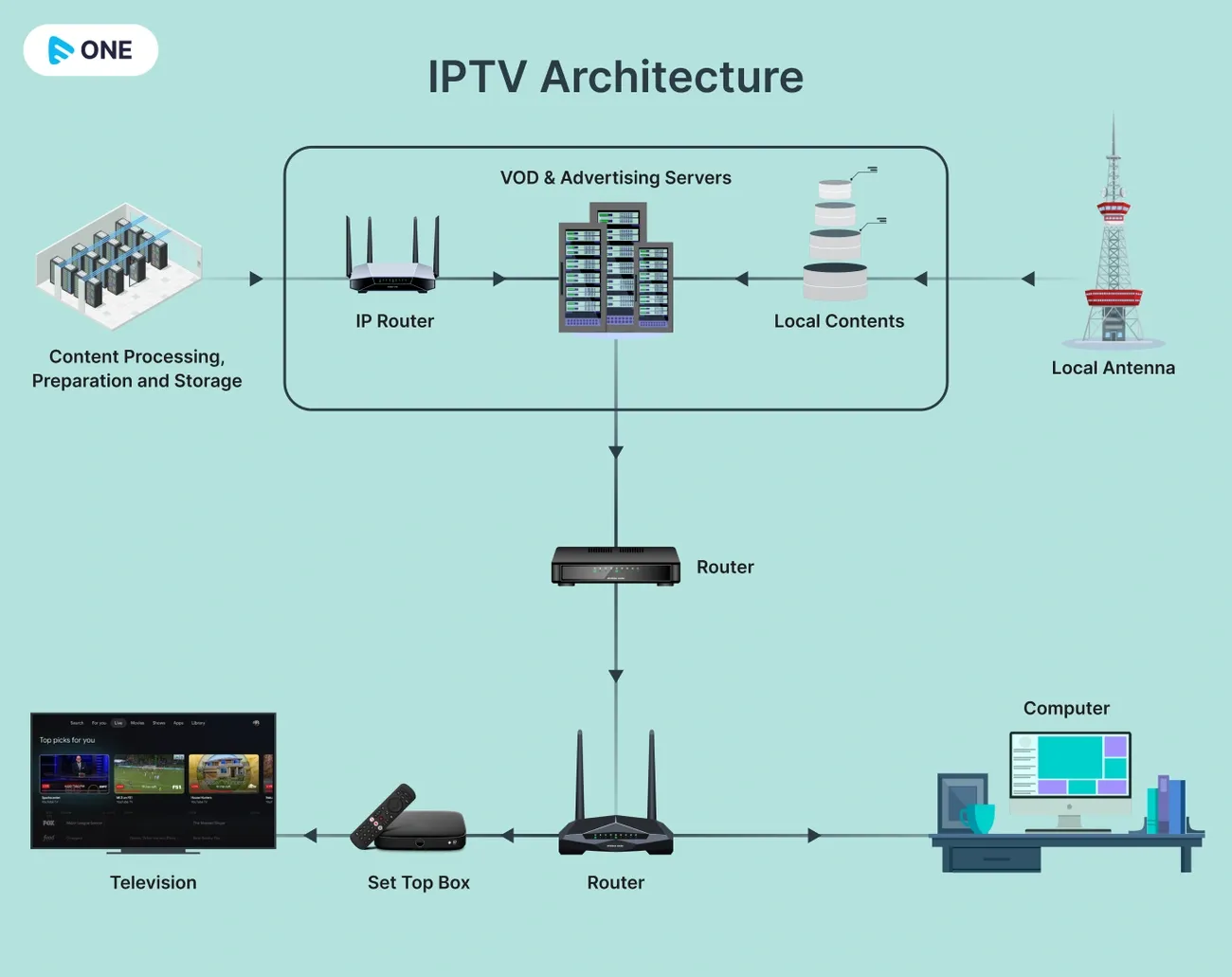 Improving IPTV Streaming Quality on Smart TV
If you experience playback issues, try these practical tips to improve your streaming quality:
- Use Ethernet when practical: A wired connection provides the most stable network environment.
- Improve Wi-Fi signal strength: If using Wi-Fi, ensure your router is close to the TV and free from physical obstructions.
- Reduce bandwidth-heavy activities: Pause large downloads or background updates while streaming.
- Restart the router and TV: A simple reboot can resolve temporary network glitches.
- Keep software updated: Regularly update your Smart TV's operating system and your IPTV application.
- Reduce playback quality: If your internet is struggling, switch to a lower resolution stream (such as HD instead of 4K).
Common IPTV Smart TV Problems and Fixes
Even with the best setup, you may encounter occasional issues. Here are common problems and how to resolve them:
IPTV App Not Available on Smart TV
If your preferred application is not in the official store, your TV's operating system may not support it. Look for alternative IPTV players that are officially available for your specific TV model.
IPTV App Keeps Crashing
Try restarting your television, clearing the application's cache (if your TV allows it), or uninstalling and reinstalling the IPTV player.
IPTV Buffering on Smart TV
Buffering is usually caused by network instability or insufficient internet speed. Try switching to an Ethernet connection, restarting your router, or selecting a lower-resolution channel.
IPTV Channels Not Loading
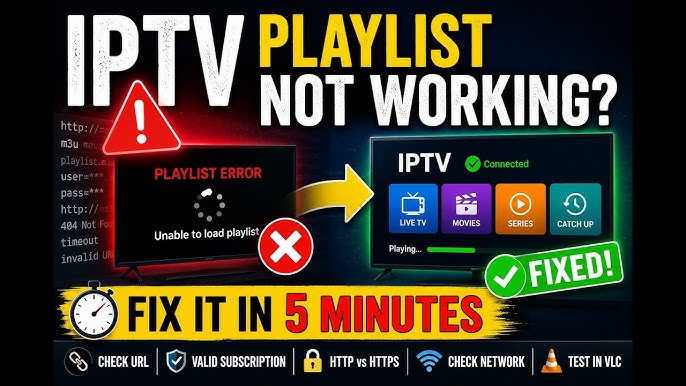
If channels fail to load, verify that your M3U URL or login details are entered correctly. If they are correct, check your internet connection or try refreshing the playlist. For a deep dive into playlist issues, read our M3U Playlist Troubleshooting Guide.
IPTV Picture Quality Is Poor
Poor quality can result from an unstable network connection causing the player to downgrade the stream, or simply selecting an SD channel instead of an HD/4K option.
IPTV Has Audio but No Picture
This often indicates a codec issue where the TV or the application cannot decode the video format. Try changing the video decoder settings within the IPTV app if available, or test a different channel.
IPTV EPG Is Not Working
If your Electronic Program Guide is empty, verify that your EPG URL is entered correctly in the application's settings and manually refresh the guide.
If you encounter persistent login errors across multiple devices, refer to our guide on IPTV Login Failed Errors for additional troubleshooting steps.
When Should You Use an External Streaming Device?
Sometimes, an older or unsupported Smart TV simply cannot run modern IPTV applications smoothly. In these cases, purchasing a dedicated external streaming device is often the best solution. Popular options include:
- Android TV devices
- Google TV devices
- Amazon Fire TV / Firestick
- Apple TV
Connecting one of these devices to your TV's HDMI port instantly bypasses the limitations of an older television and provides access to modern app stores and faster processing power.
How to Choose an IPTV Service for Smart TV
Selecting the right provider is just as important as setting up your television. When evaluating a service, consider:
- Smart TV and application compatibility
- Streaming quality and reliability
- Channel and content availability
- EPG functionality
- Pricing and customer support options
If you want to learn more about evaluating different providers, be sure to read our comprehensive guide on finding the Best IPTV USA – Stream Smarter, Watch Without Limits.
Frequently Asked Questions
Conclusion
Understanding how to set up IPTV on Smart TV empowers you to take full control of your home entertainment. By ensuring you have a compatible application, entering your credentials correctly, and maintaining a stable internet connection, you can enjoy a flawless viewing experience directly on your television.
If you are ready to explore a reliable, high-quality streaming service that works seamlessly with your devices, discover what the OmniPtv platform has to offer and start streaming smarter today. If you need further help, feel free to visit our FAQ section or Contact Support.